Top Menu
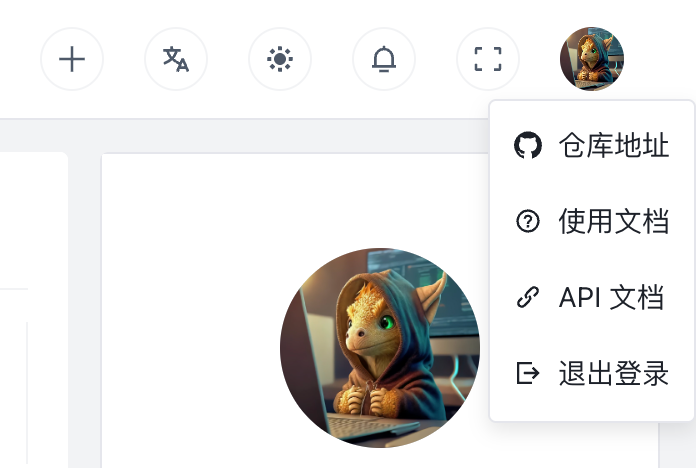
The top menu is persistent and provides some common quick actions.
Create Task
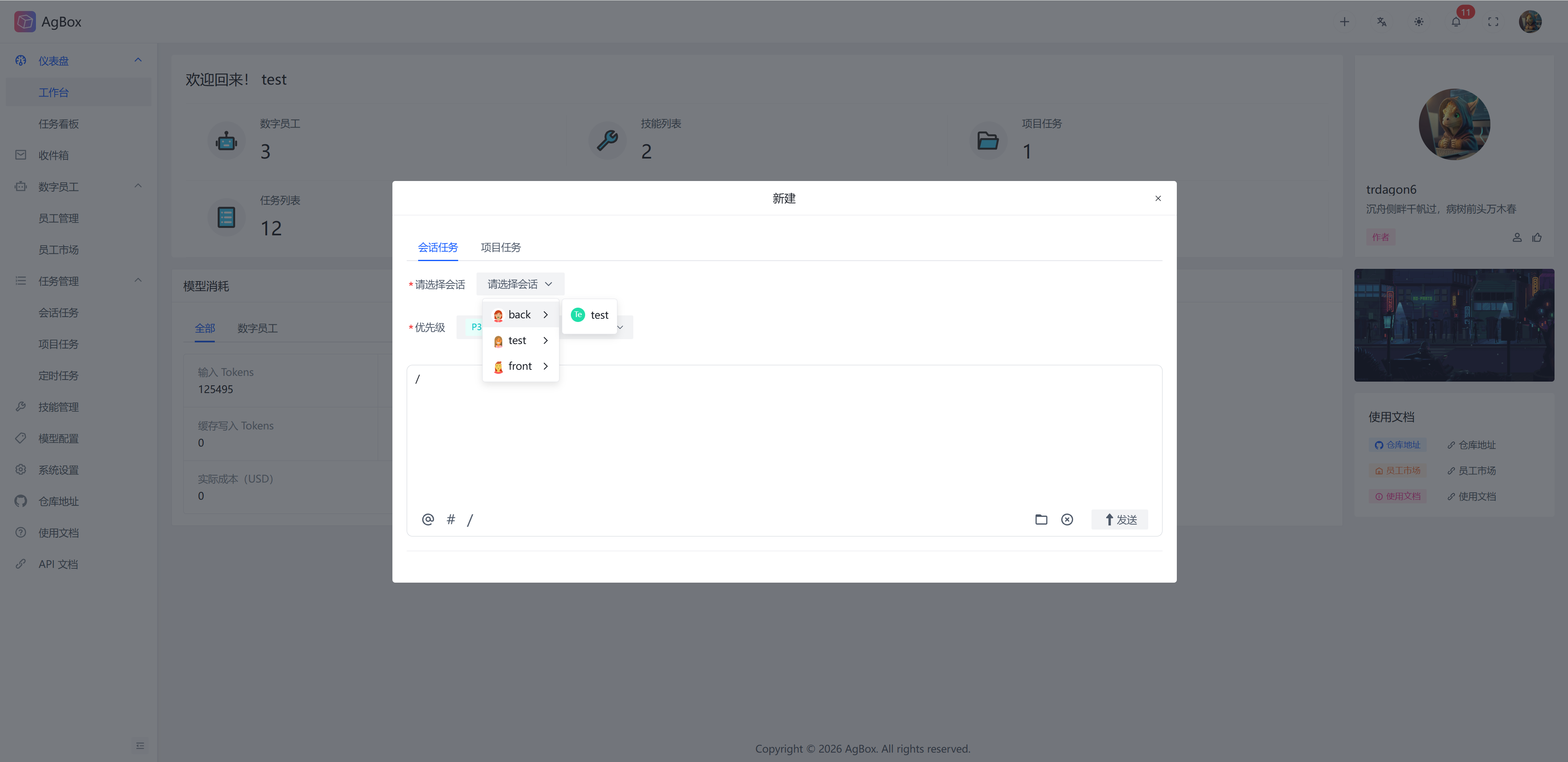
The top menu provides a quick create task button, allowing you to quickly create tasks from any browsing location.
Priority Selection
Queued tasks will enter the execution queue first based on priority. Tasks can be modified at any time during the pending stage after creation.
Session Task
Switch the tab to Session Task, select the corresponding digital employee and session to create a Session Task.
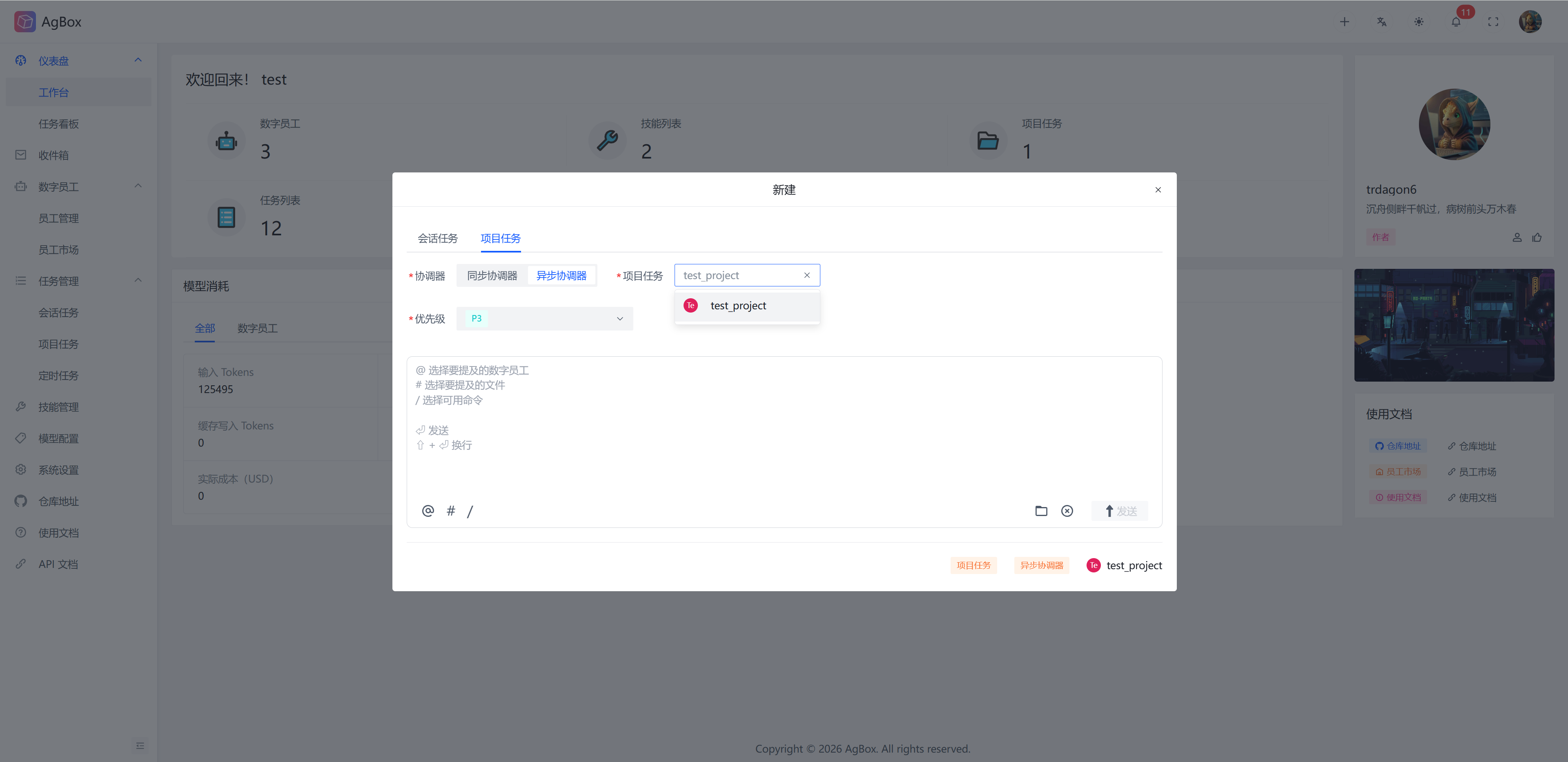
Project Task
Switch the tab to Project Task, select the coordinator type and corresponding project to create a Project Task.
Task Input
@can select the digital employees that need to be mentioned in the task. This function is only valid inProject Task. For example:@back have this employee develop a xxx backend code. The coordinator will only delegate tasks to the mentioned digital employees.
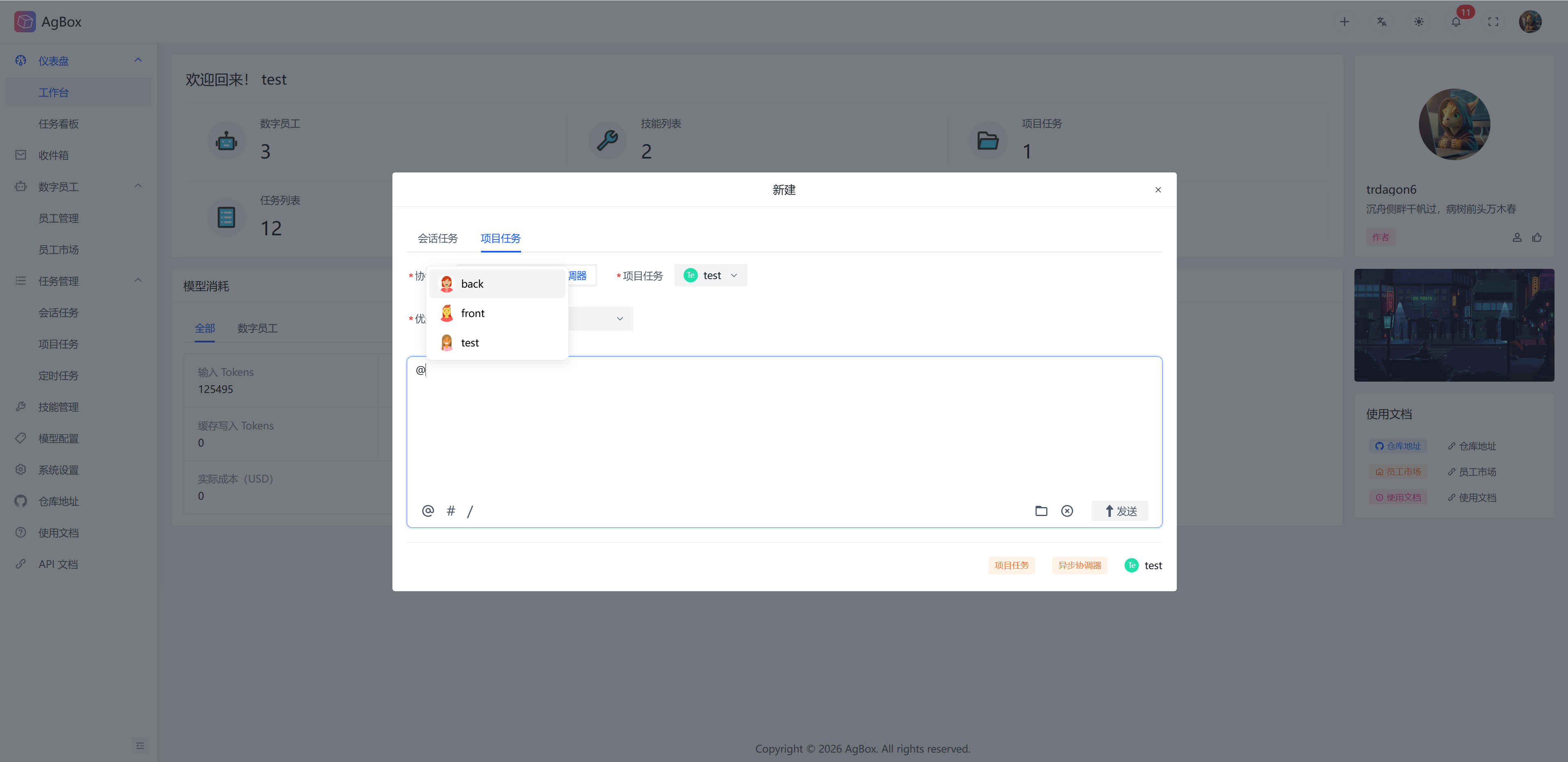
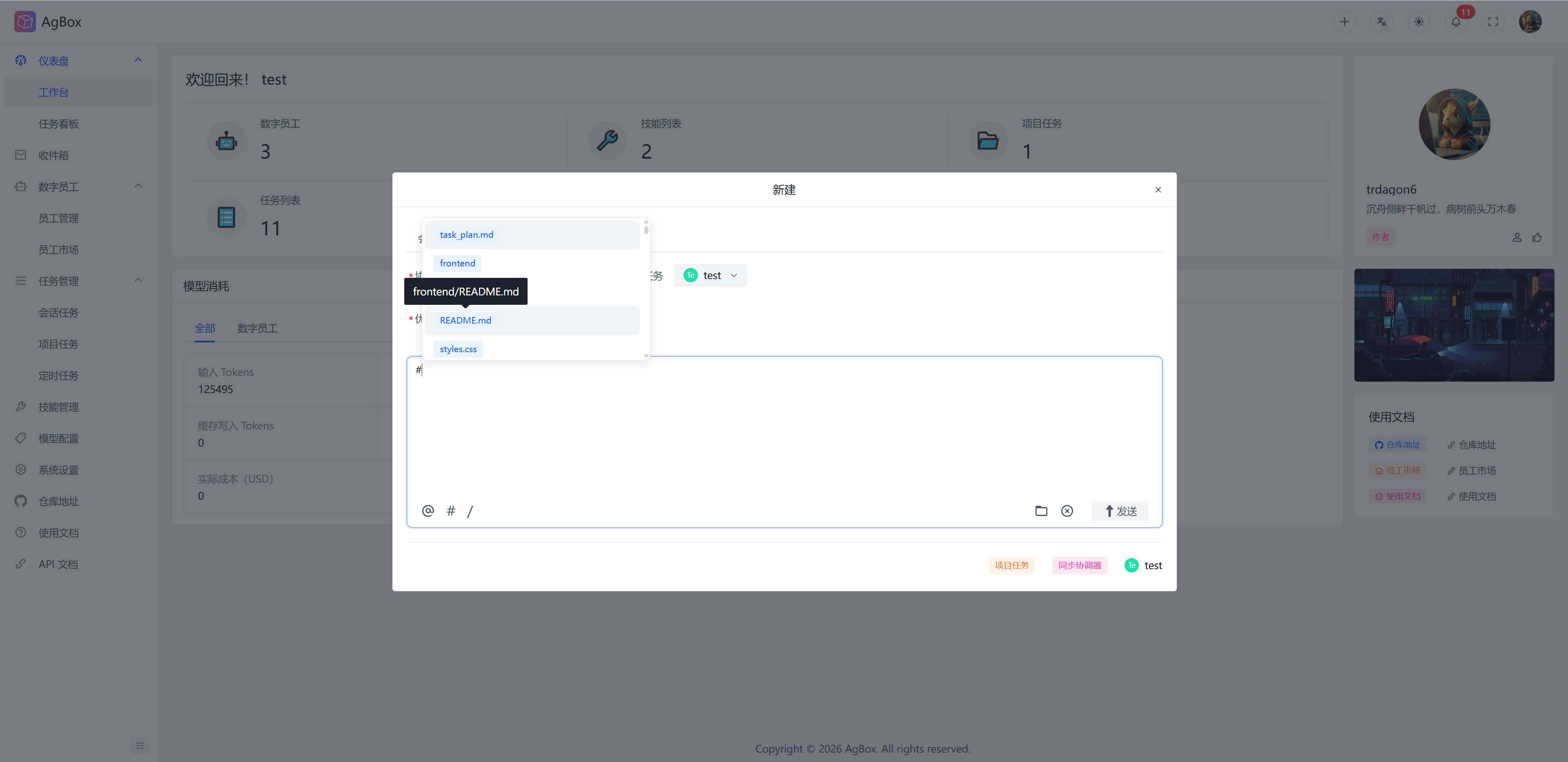
#can select existing files in the workspace that need to be mentioned. This function filters out.git,.worktrees, and.pastesdirectories and files by default. For example:#xxx.txt read the content of this file. AgBox will automatically identify the mentioned files and their paths when processing. Hover the cursor to view the complete file relative path.
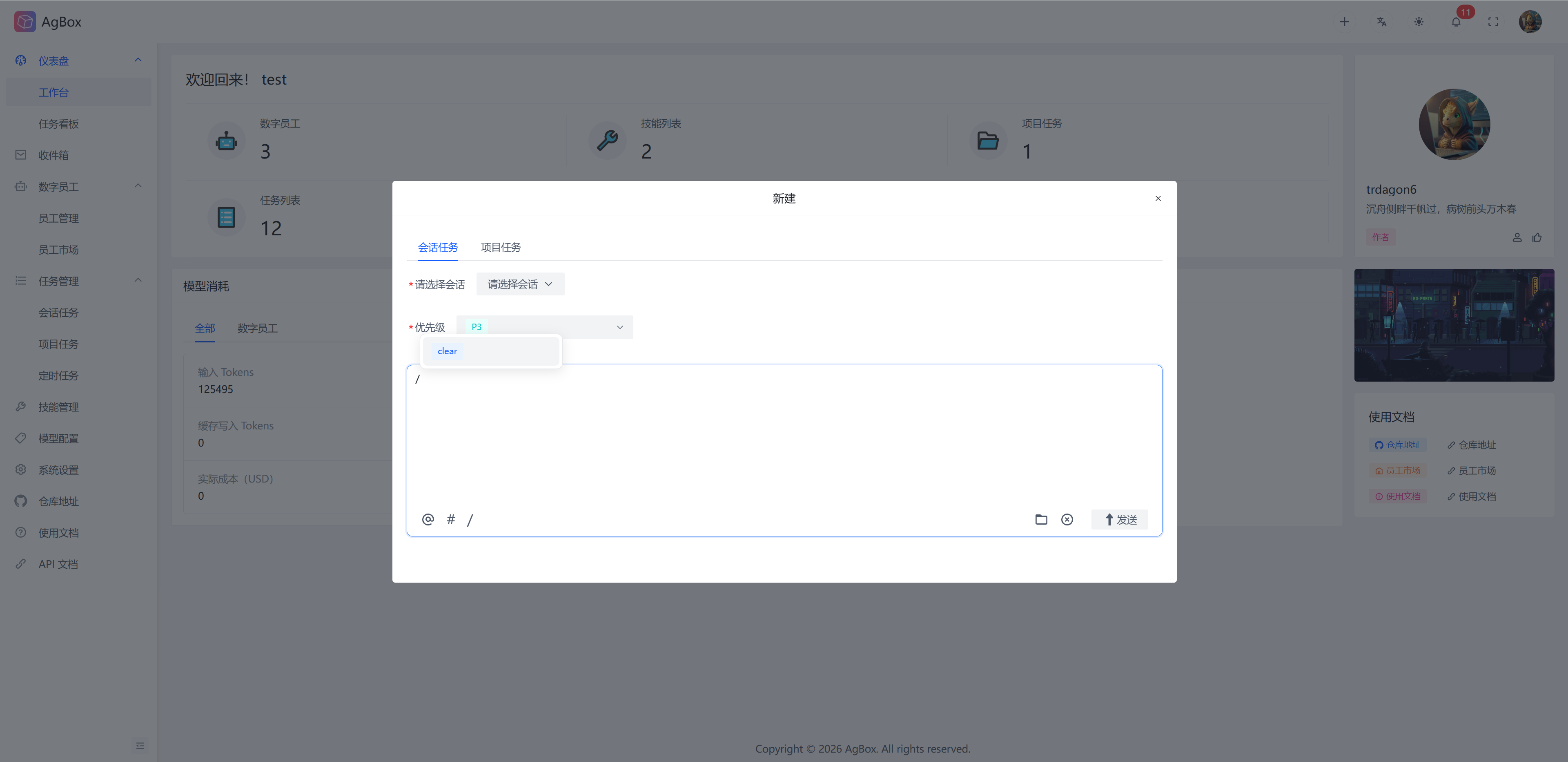
/slash commands provide common quick commands.clear: Clear the current input box.
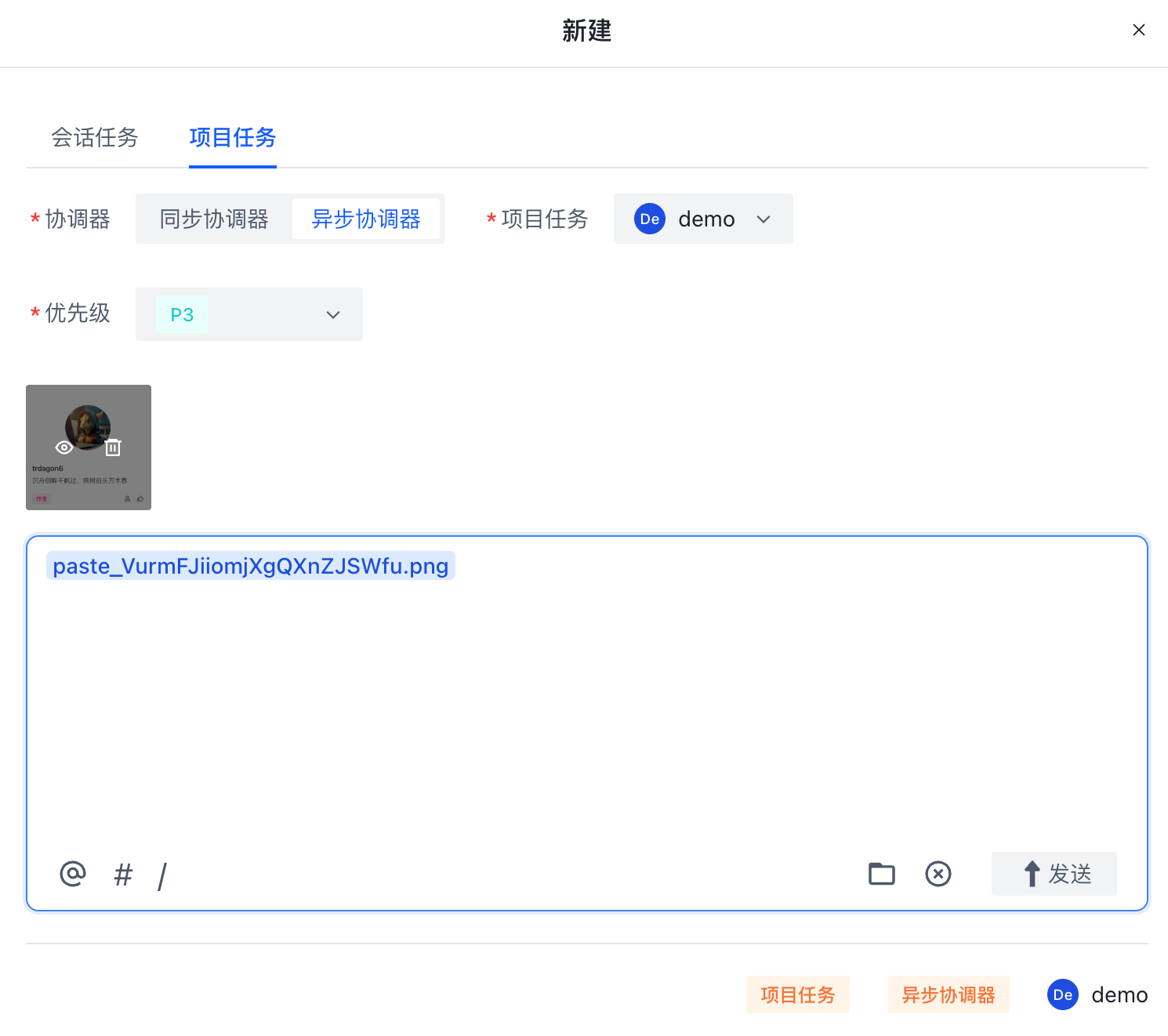
- Screenshots or clipboard images can be pasted directly into the input box. Images will be uploaded to the
.pastesdirectory of the workspace. After successful image upload, an image preview will be displayed above the input box, and the input box will automatically insert the image file mention. Hover the cursor to enlarge the preview image.
Bottom Actions
- Click
Sendor press Enter in the input box to submit the task. - The
Clearicon can clear the current input box content. - The
Foldericon can open the workspace.
Workspace
- The workspace provides a complete file system where you can manage project files, including view, create, rename, edit, delete, move, upload, and download. The file operations in the workspace are consistent with those in
Skill Management. For details, refer to Skill Management - View Skill.
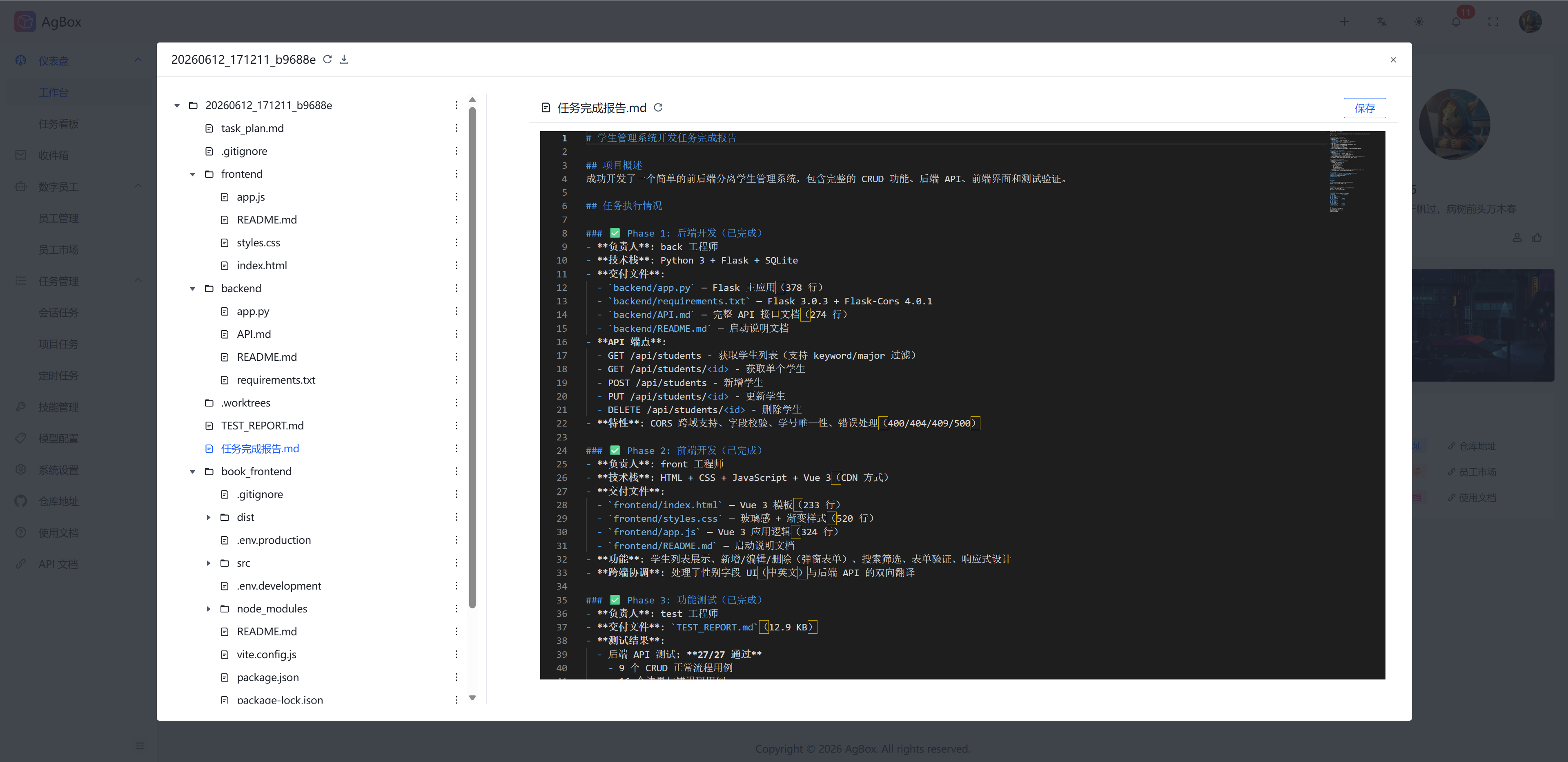
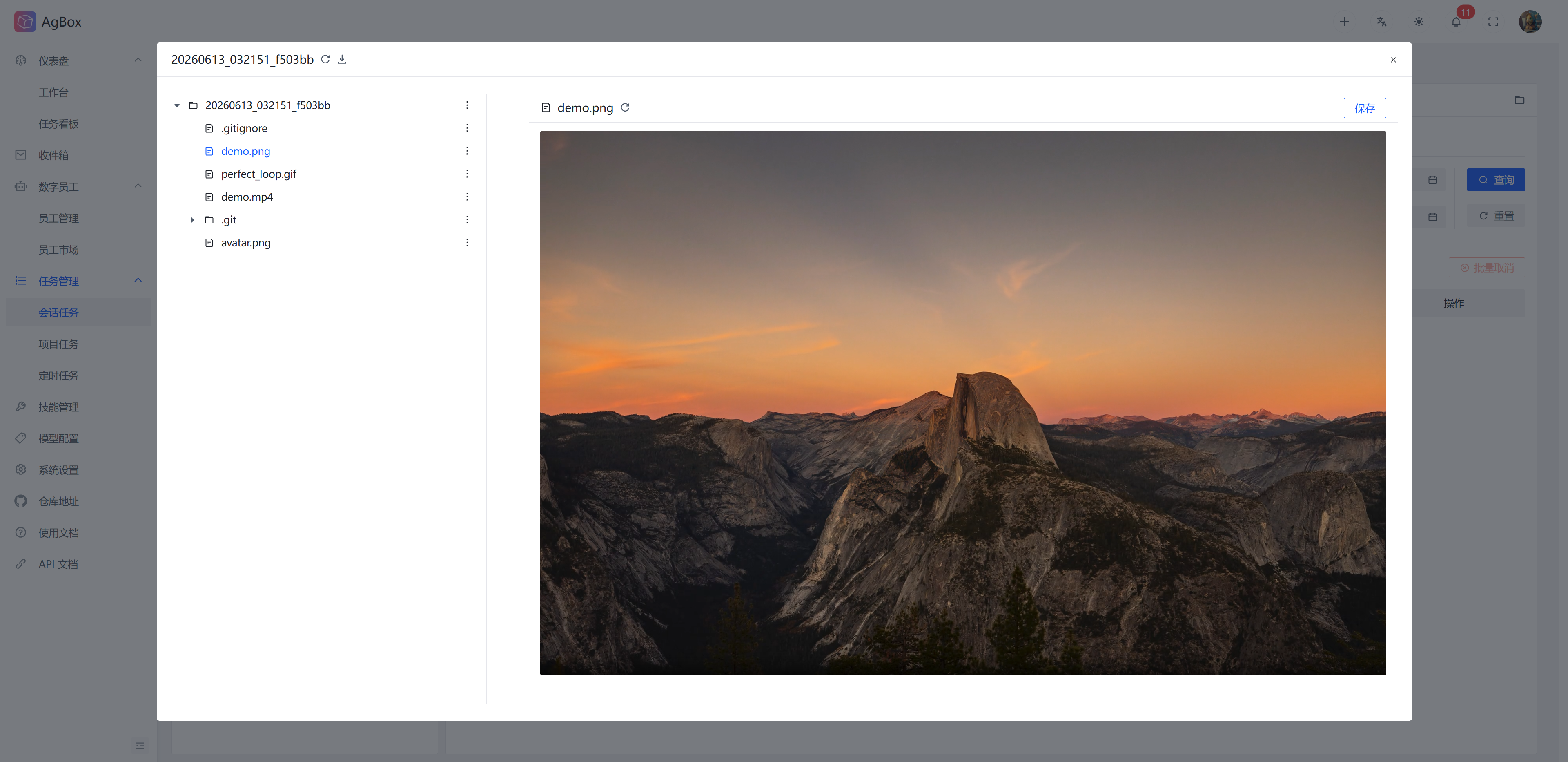
- The download button next to the refresh button in the upper left corner of the workspace can export the entire project space to local as a
ziparchive. - The workspace supports image preview.
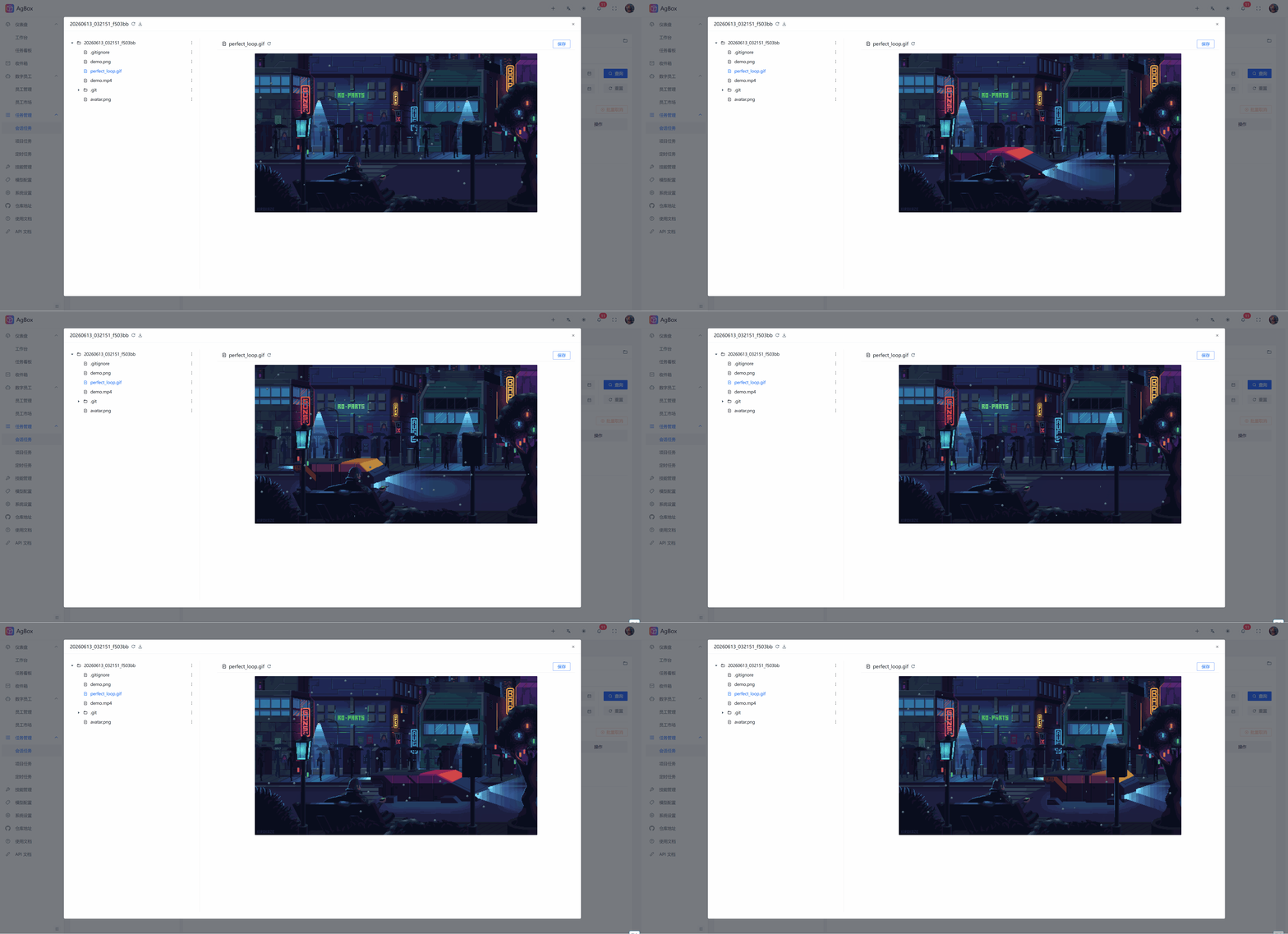
- The workspace supports gif preview.
- The workspace supports video preview.
- The workspace directory path is:
~/.agbox_workspace.
Queue Description
To ensure the consistency of session and project files, tasks meeting certain conditions can only have one running at the same time.
Session Task: For the same digital employee and the same session, only one task can be running at the same time. Subsequently dispatched tasks will queue up in order.Project Task: For the same project, only one task can be running at the same time (synchronous and asynchronous coordinators share the queue). Subsequently dispatched tasks will queue up in order.
Inbox
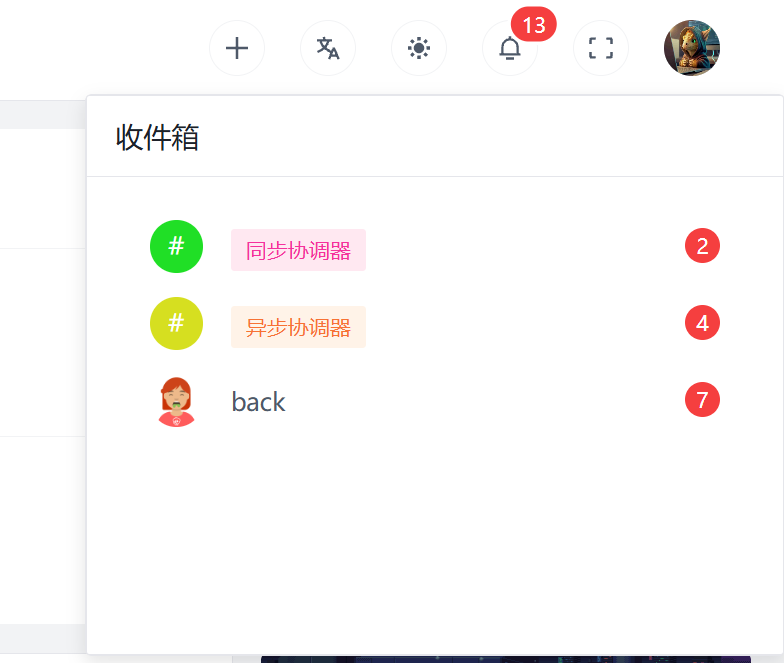
The top menu provides quick view, jump, and unread message count reminders for the inbox. Click to quickly jump to the corresponding digital employee message page in the inbox. For details, refer to Inbox.
Miscellaneous
Switch Language: Provides both Chinese and English languages, freely switchable.Switch Theme: Provides both light and dark themes, freely switchable.Fullscreen Mode: Provides fullscreen mode.Avatar Dropdown Menu: Click to access related links and logout.