
Skill Management
This page provides complete skill management.
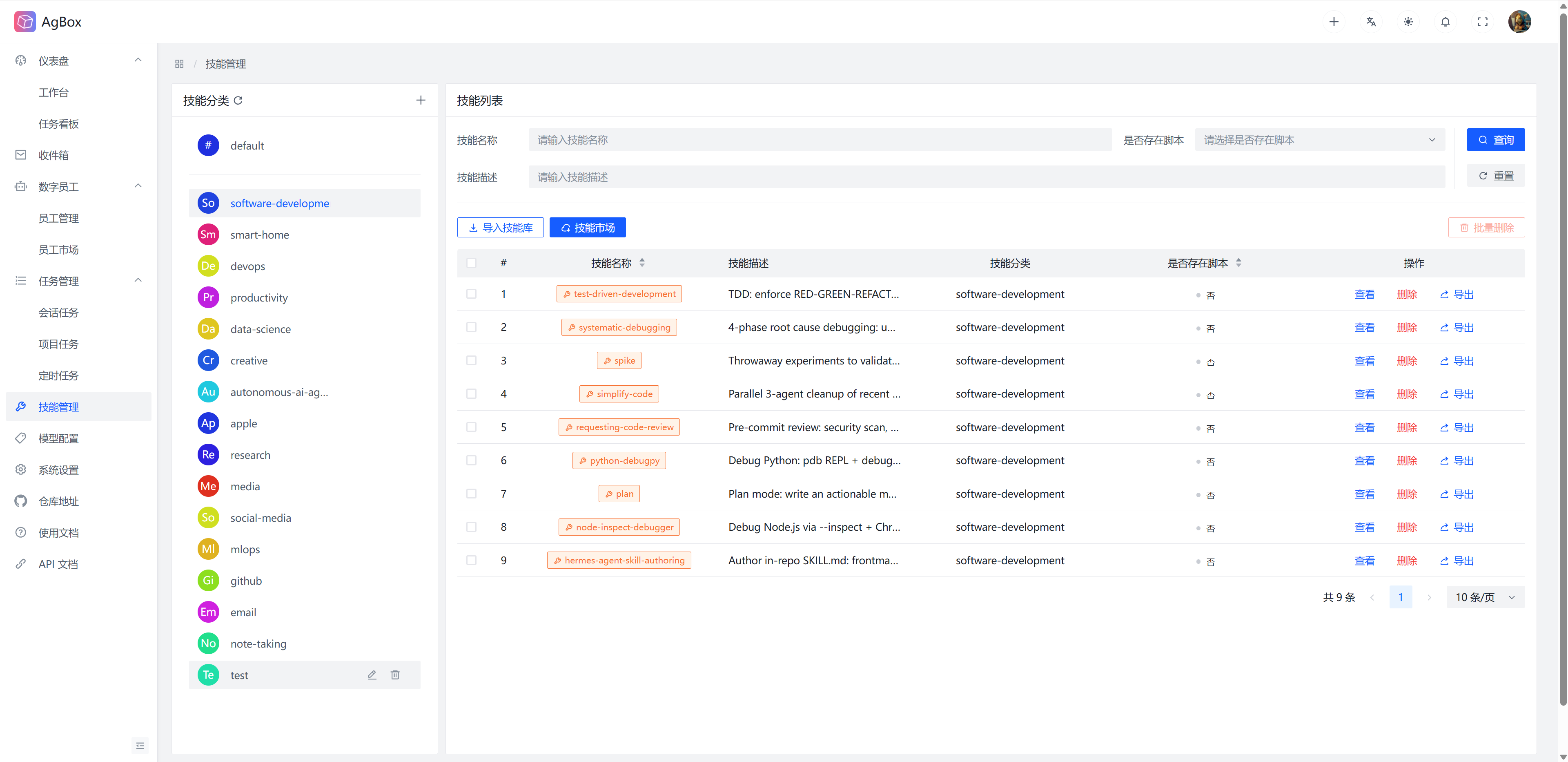
Field Description
Refer to Field Description - Skill List
Interface Layout
- The left side displays the skill category list.
- The right side displays the skill list under the selected skill category.
Search & Sort
- Supports searching by
Skill Name,Skill Description, andHas Scriptfields. - Supports sorting by
Skill NameandHas Scriptfields.
Skill Category List
- The default category
defaultis persistent. Skills without a category will be archived here. - The
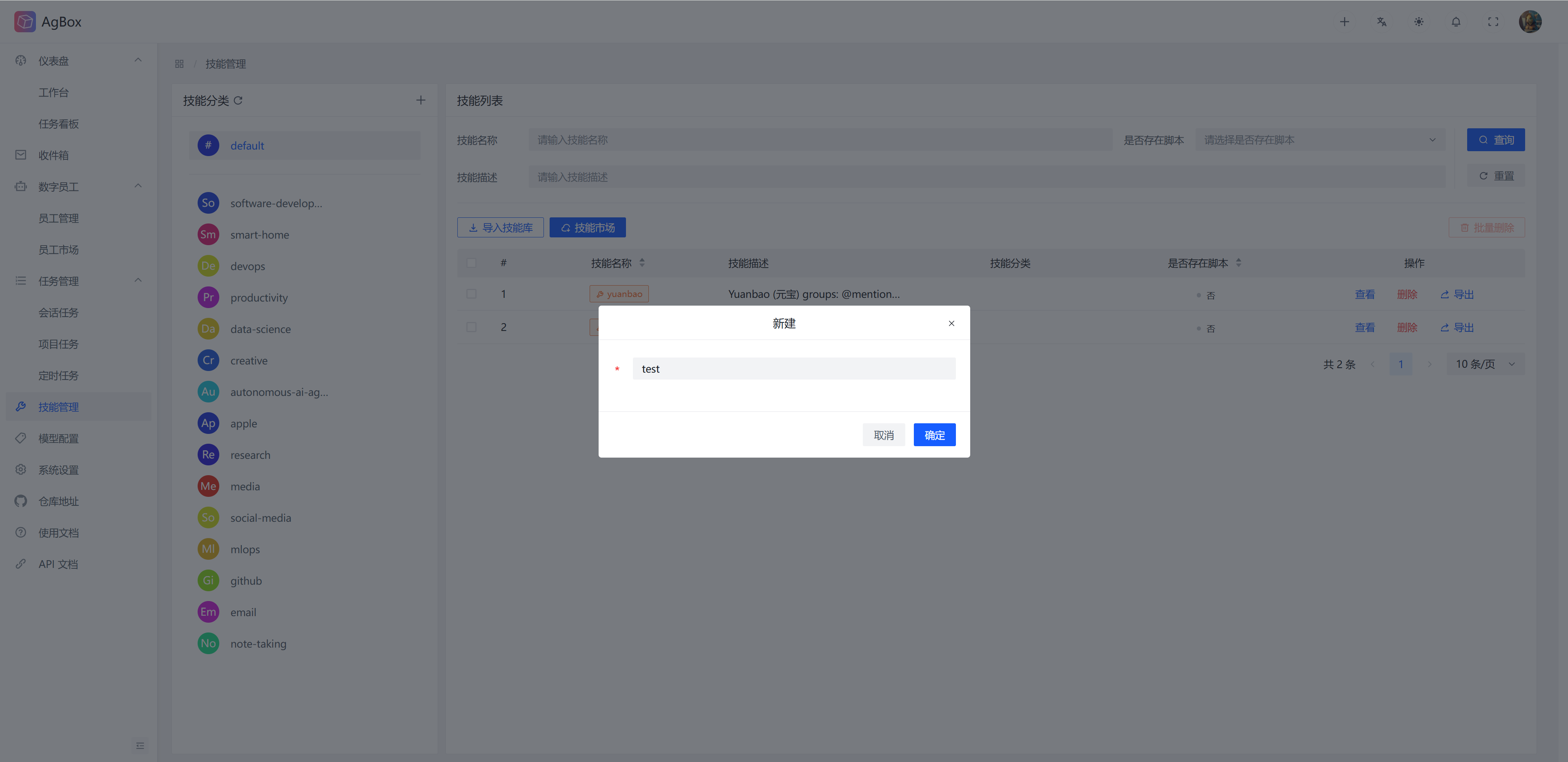
+icon can create a new skill category. Click to pop up the create skill category interface. Fill in the skill category name to create a new category. Categories with the same name cannot be created.
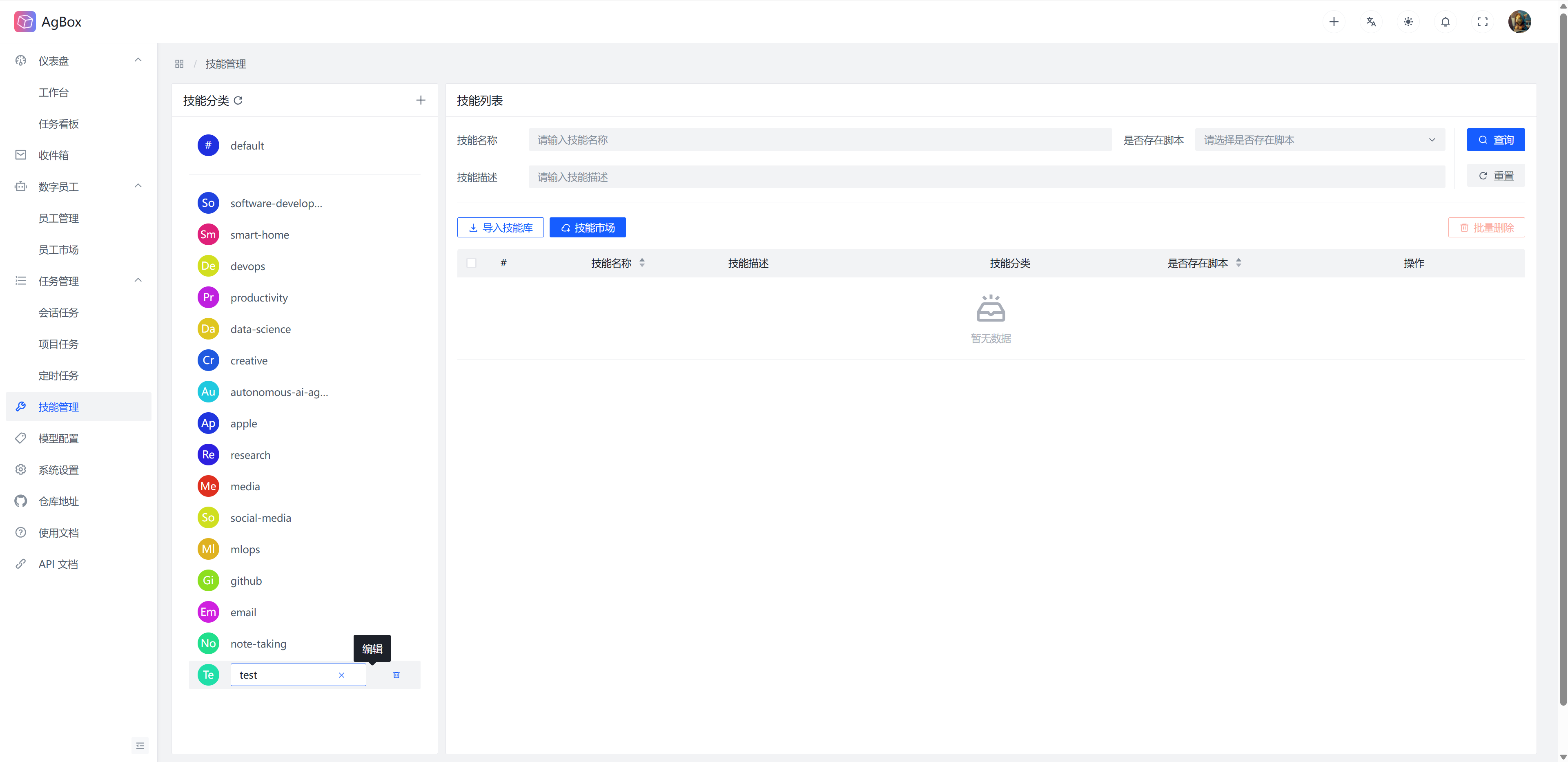
- Hover the cursor to display edit and delete buttons.
- The edit button can rename the skill category. Press Enter or lose focus to auto-save. Press Esc to discard editing. Categories with the same name cannot be renamed.
- The delete button deletes the category. Categories with skills cannot be deleted.
- Skill categories in the skill library and each digital employee are independent of each other.
Skill List
Import Skill
- Skills with the same name (case-insensitive for skill categories, ensuring skill uniqueness when loaded by the model) cannot be imported. Import overwrite behavior and incorrectly formatted skills are determined by the configuration in System Settings - Skill List.
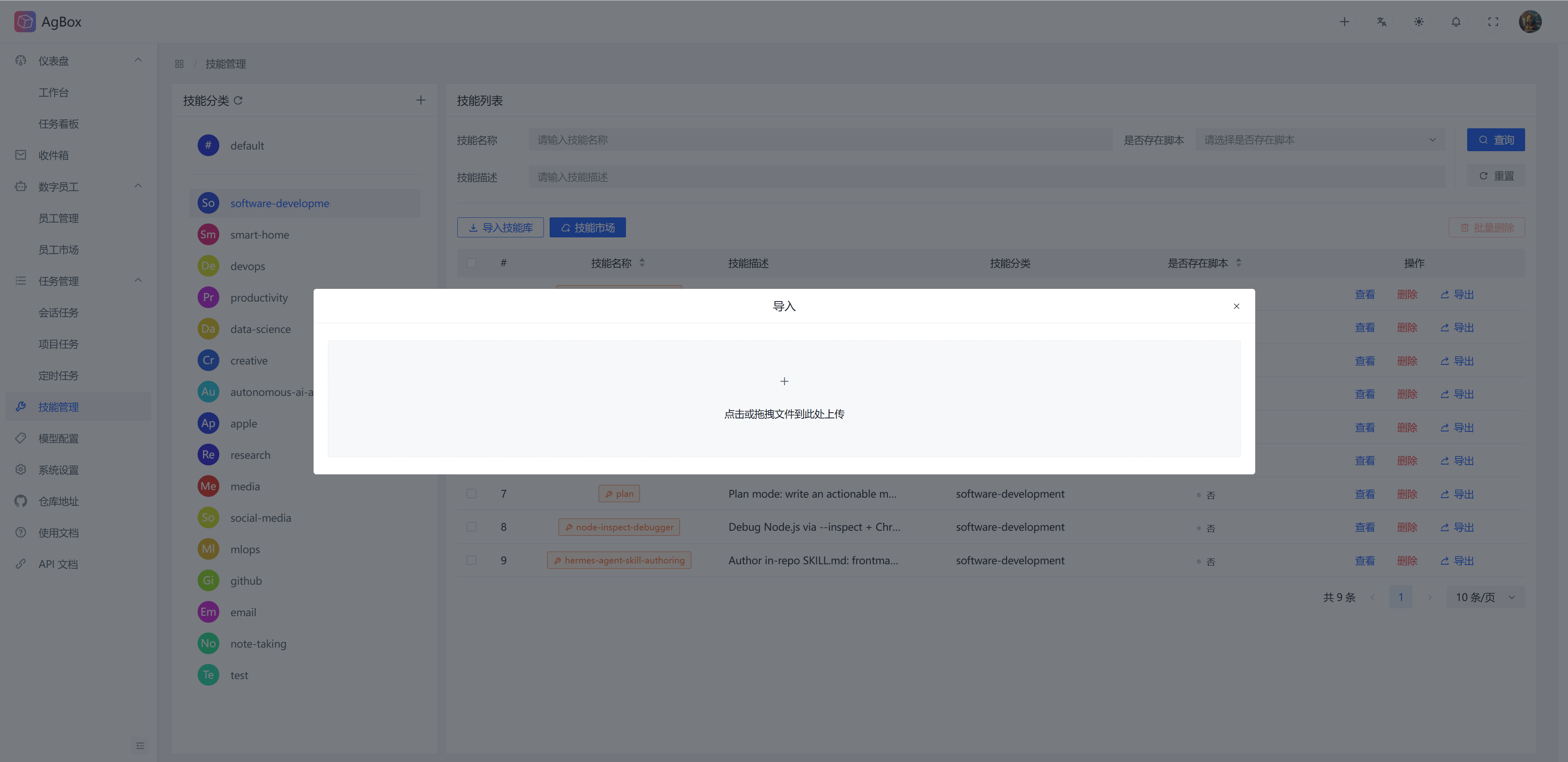
- Upload skill archive files from local to import. Only
zipformat is supported. All skills that conform to the format in the archive will be automatically identified.
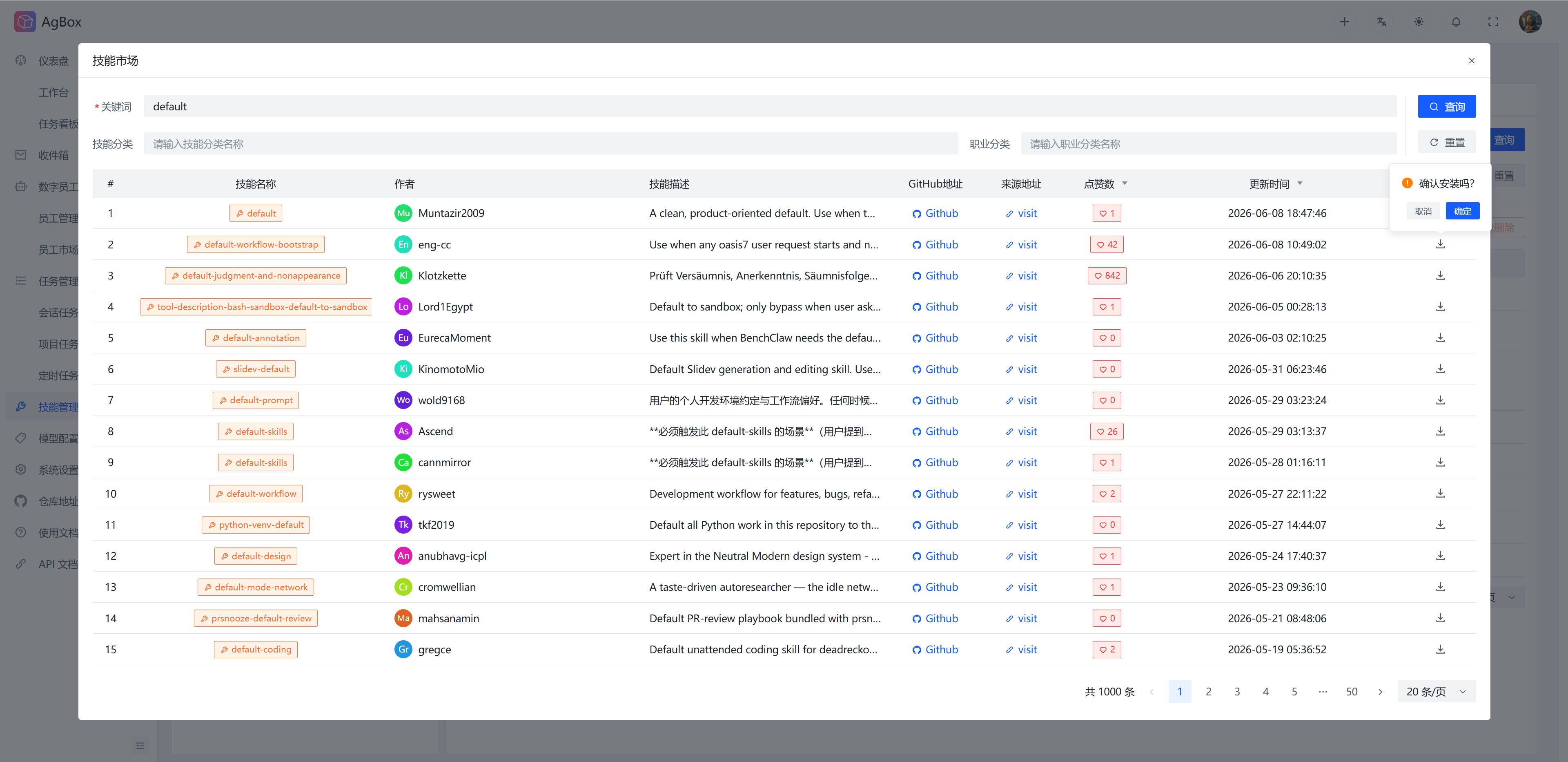
Skill Marketplace
- Currently, the skill marketplace integrates
skillsmp. - For
Field Description, refer to Field Description - Skill Marketplace. - Click the
Downloadbutton to install skills directly from the skill marketplace. The skill will be installed in the currently selected skill category.
View Skill
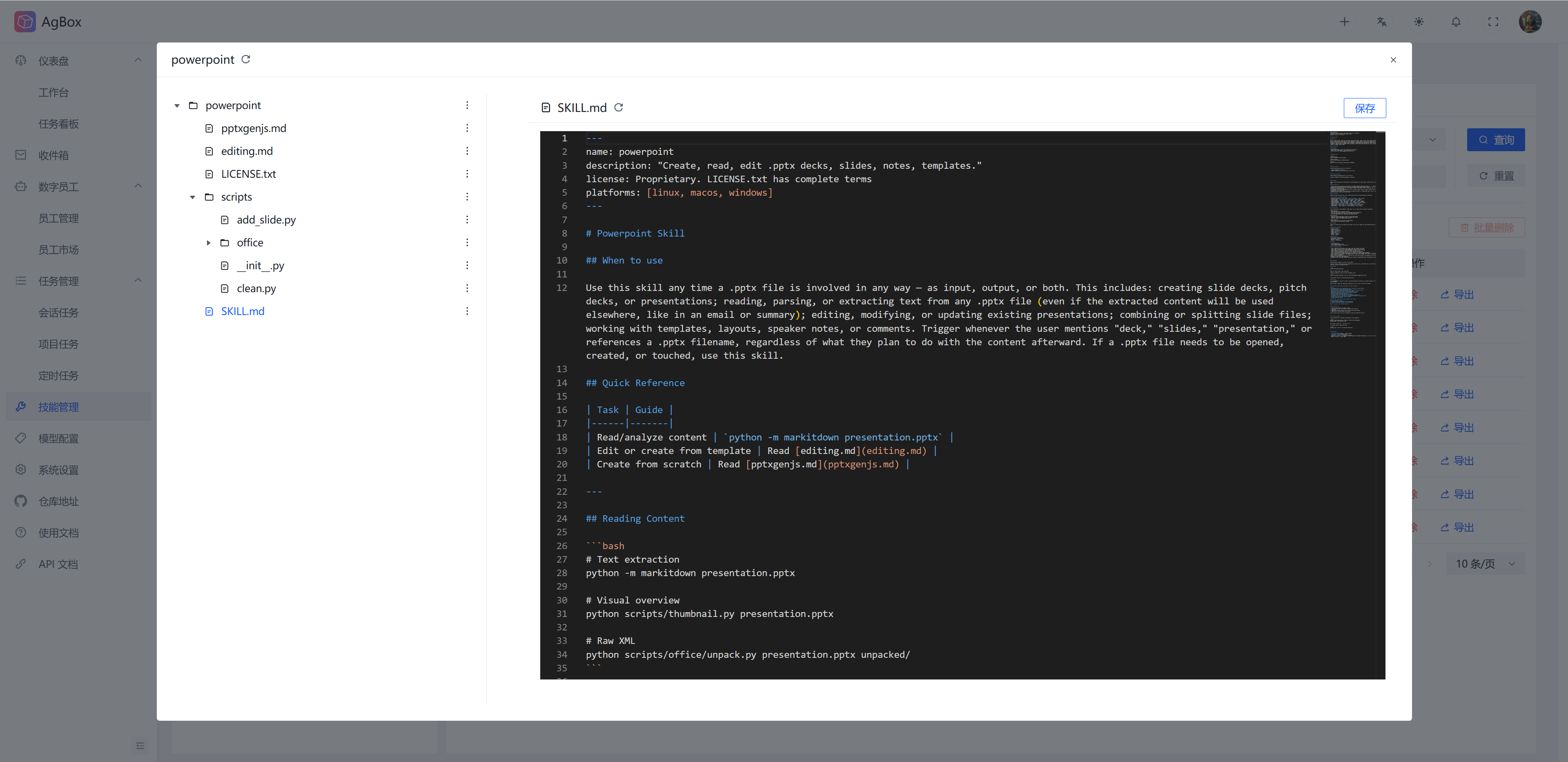
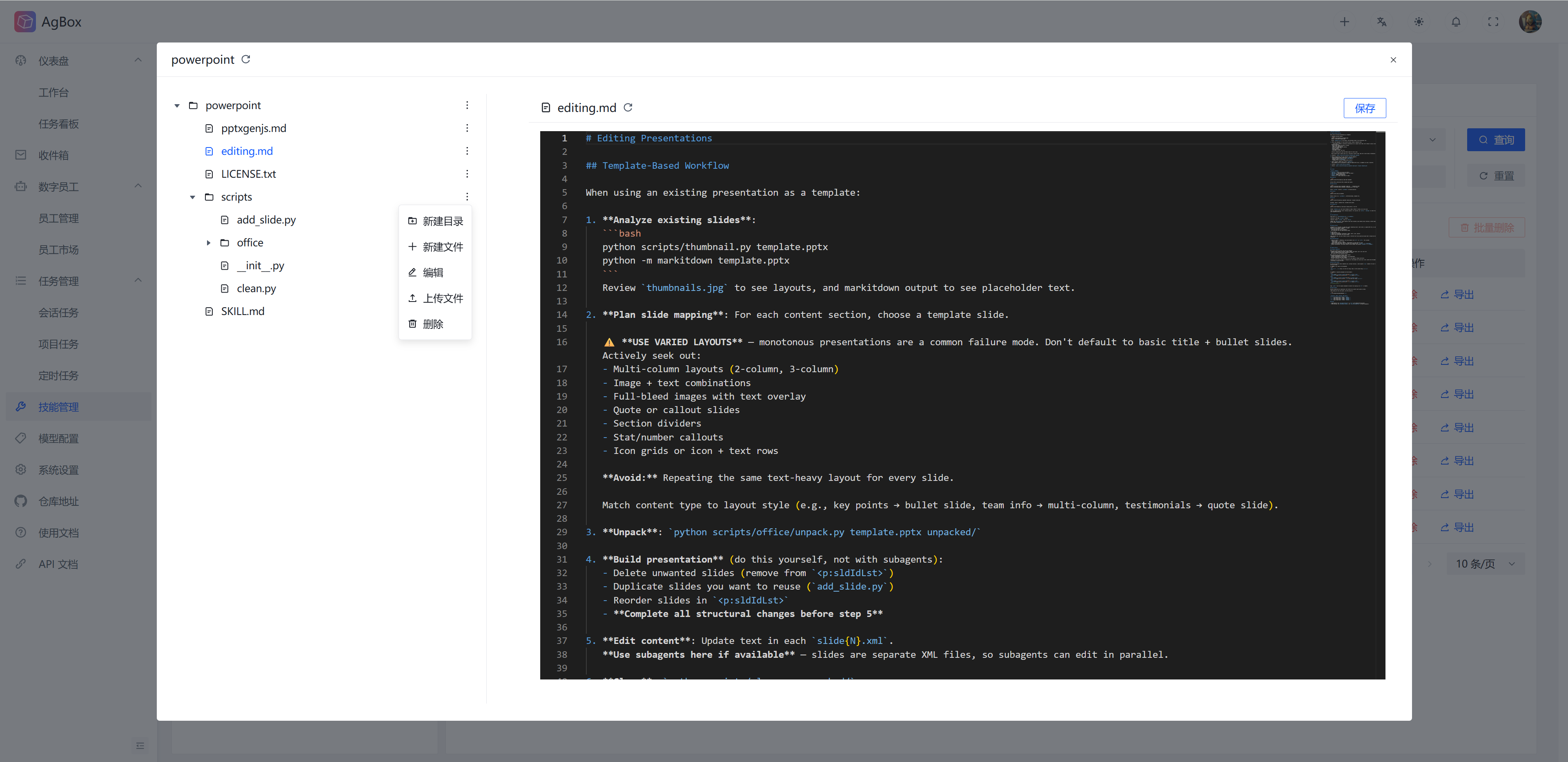
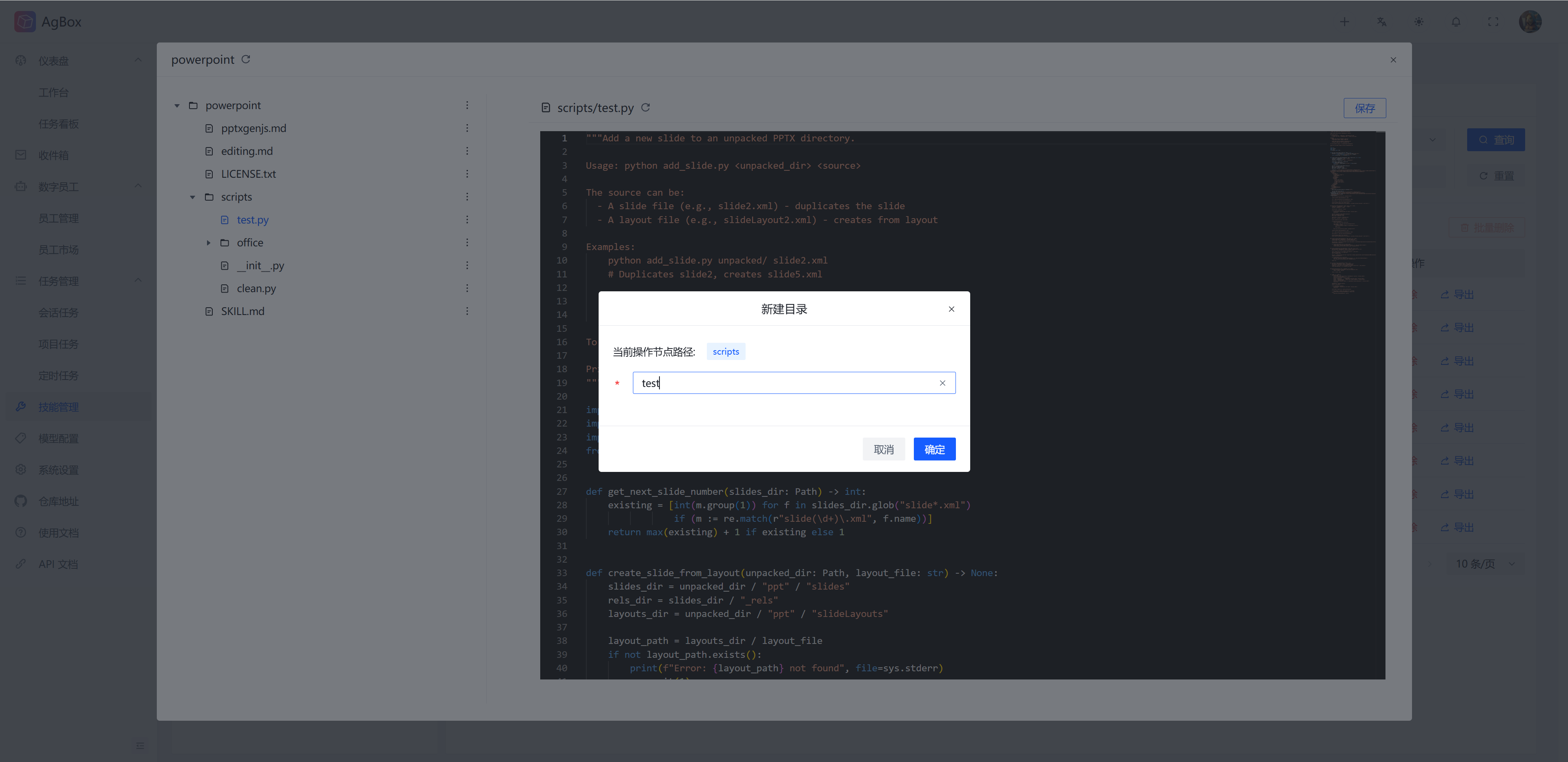
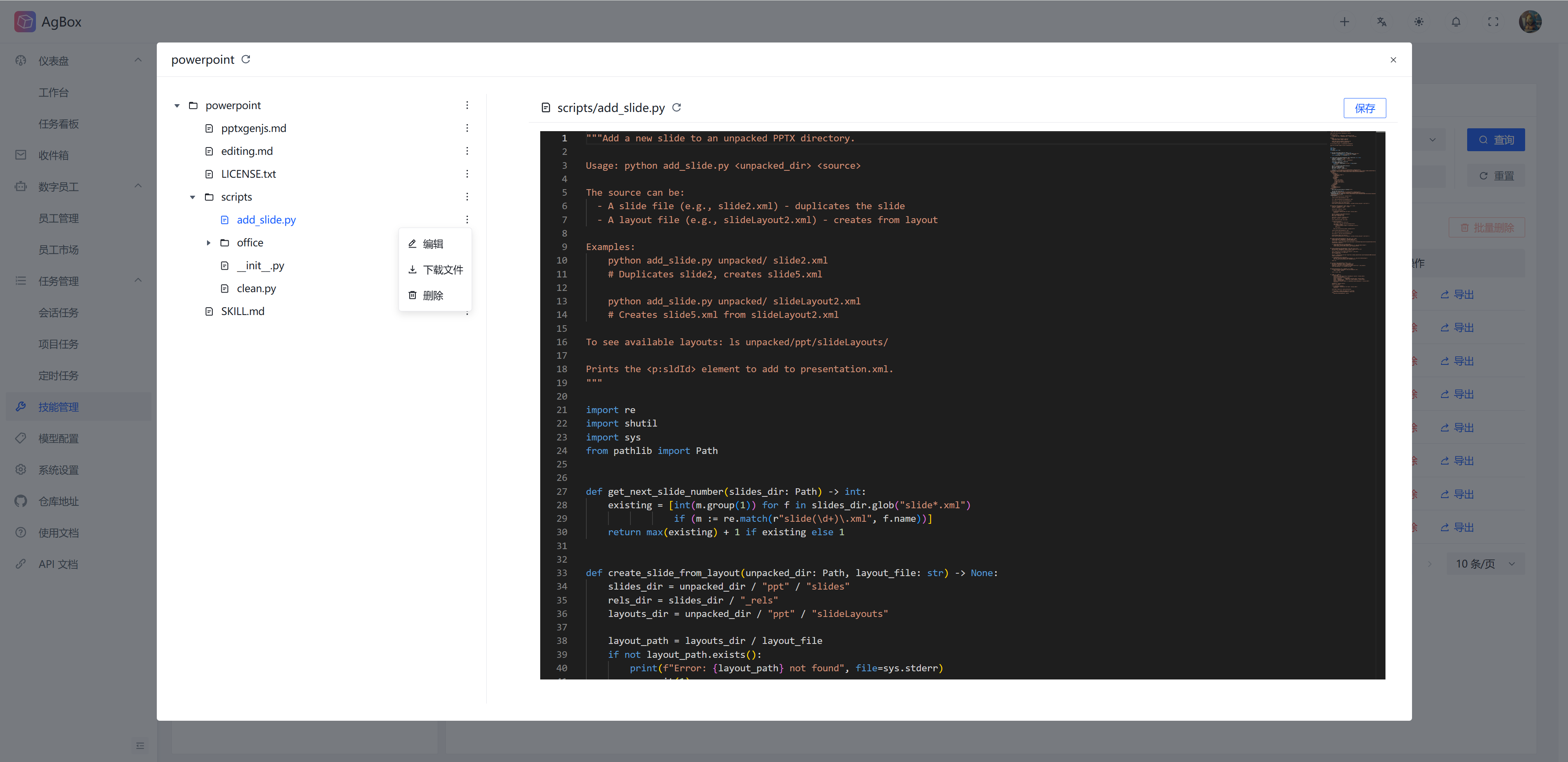
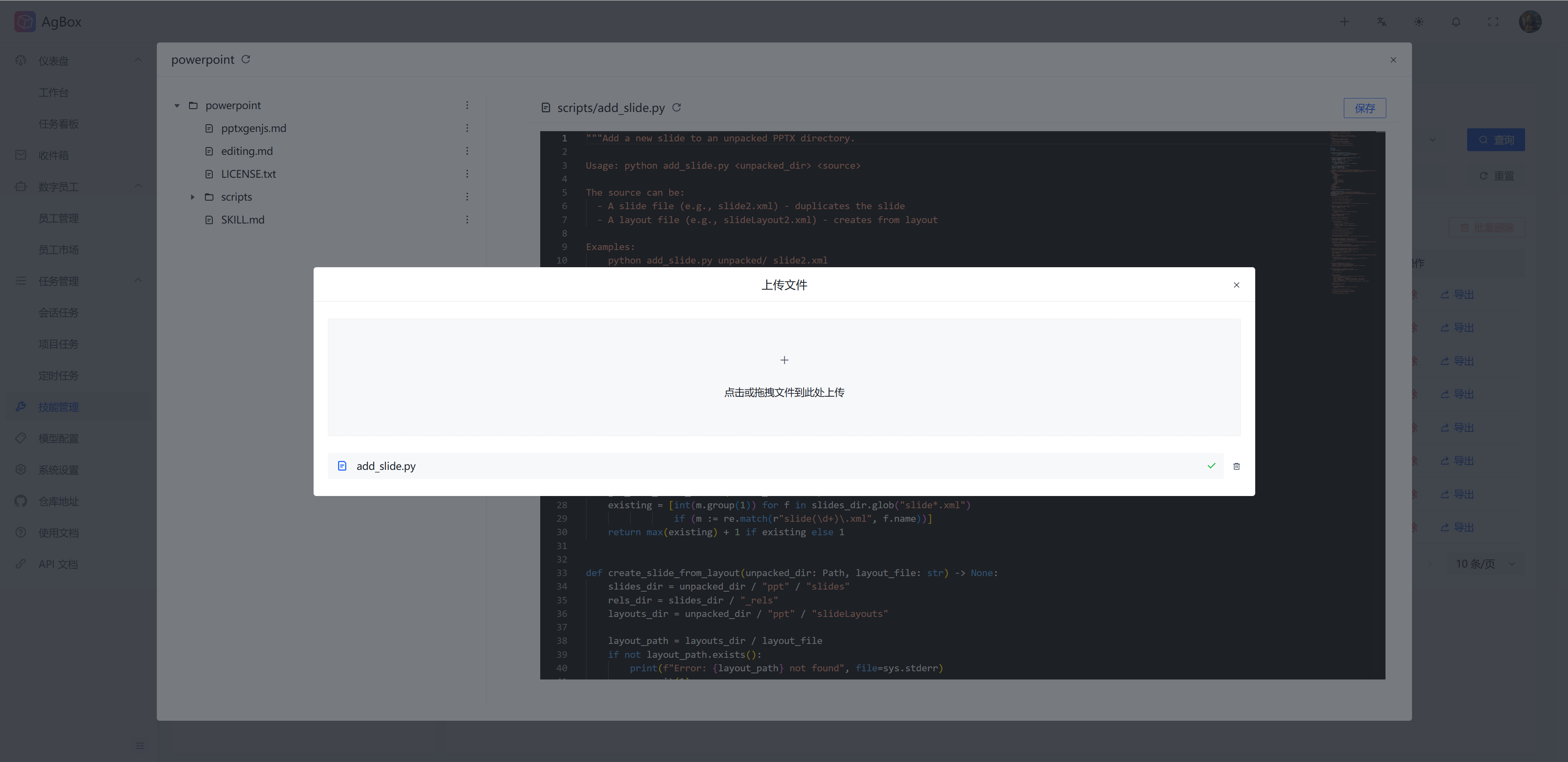
Skill viewing provides a complete file system just like the workspace, where you can manage skill files, including view, create, rename, edit, delete, move, upload, and download. Click the option button on the right side of the directory tree to perform the corresponding operation. Different node types support different operations:
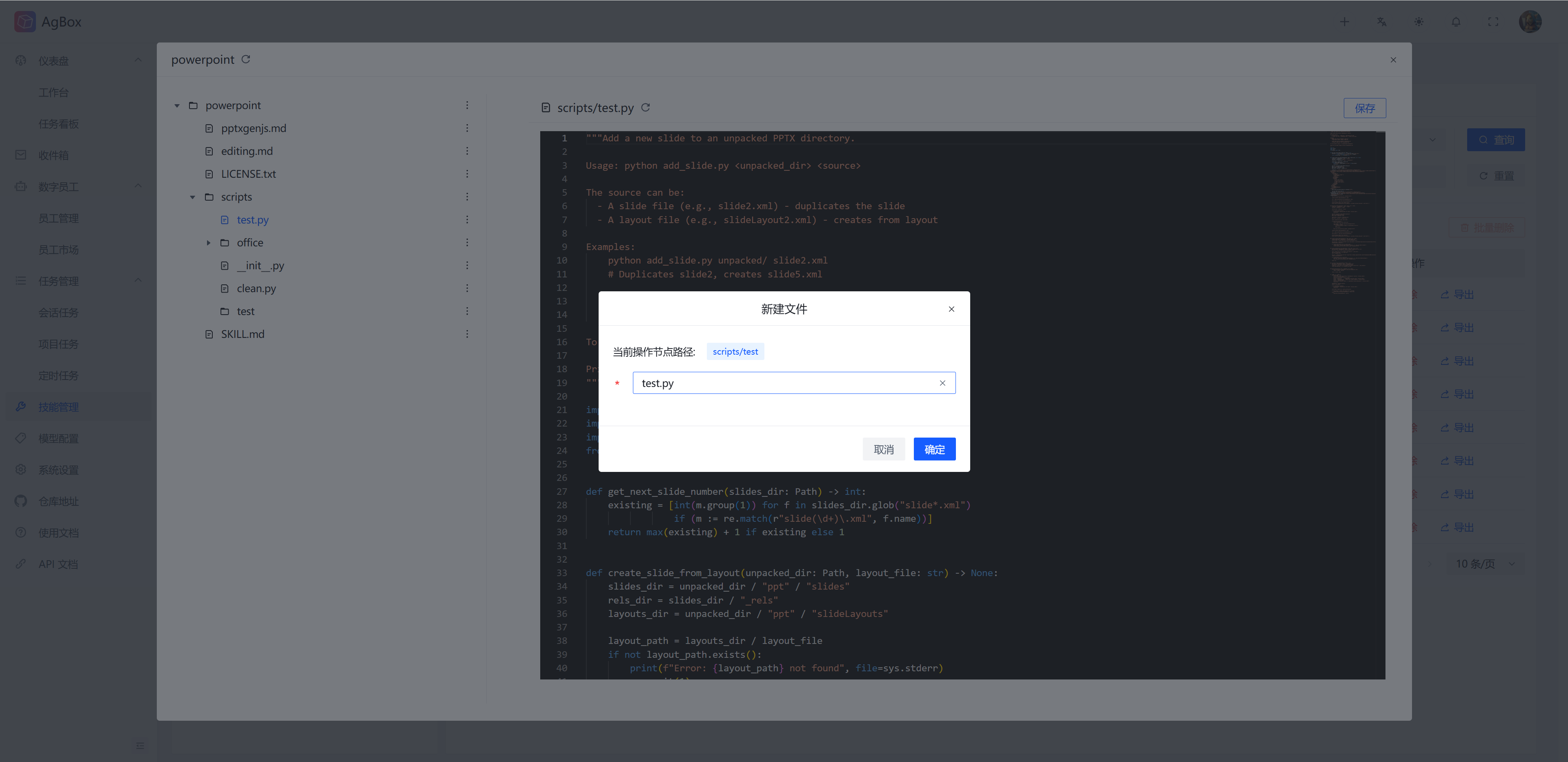
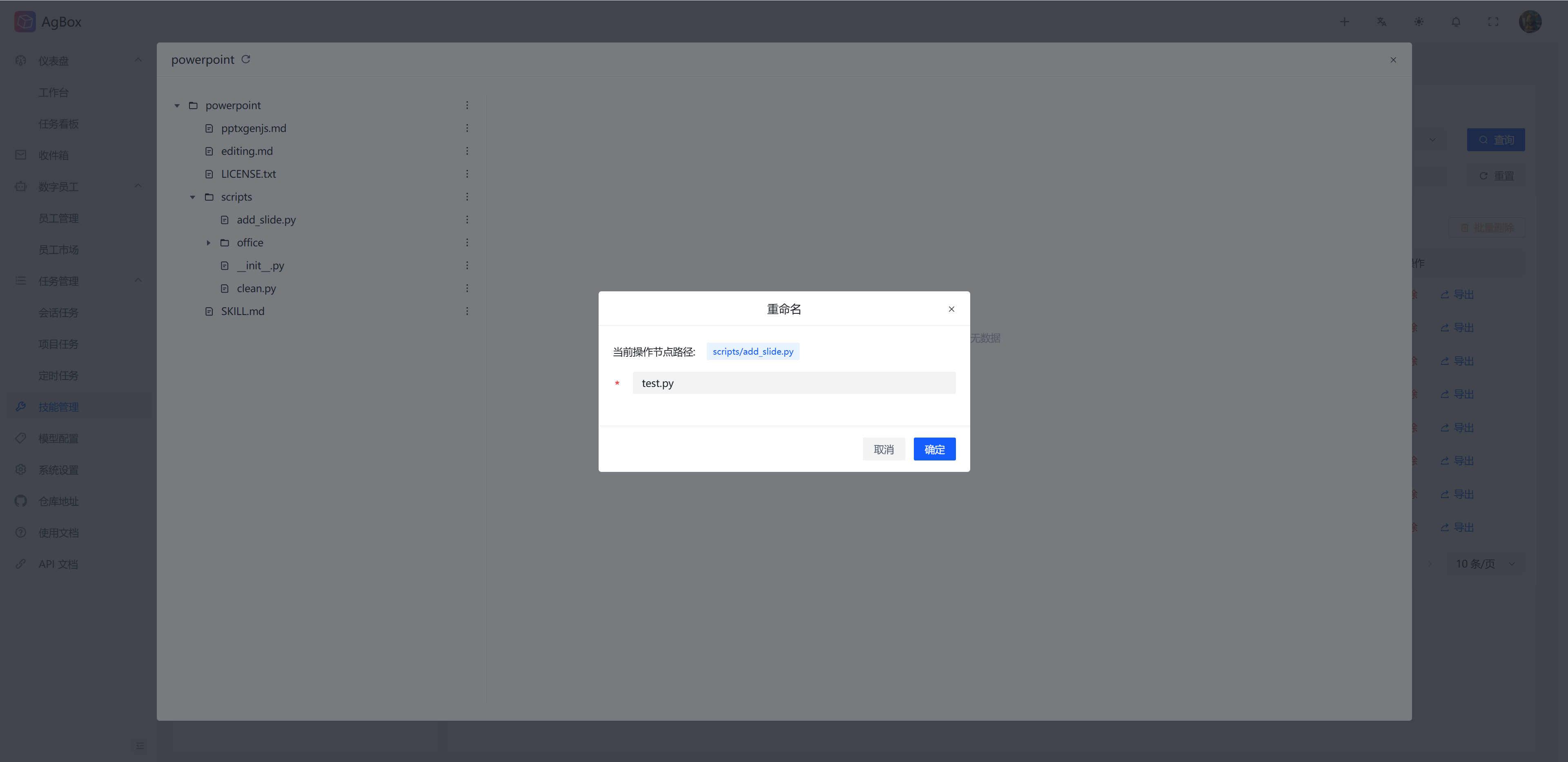
Root Directory: Supports creating directories, creating files, and uploading files.Subdirectory: Supports creating directories, creating files, renaming, moving, uploading files, and deleting.File: Supports renaming, downloading, moving, and deleting.SKILL.mdTheSKILL.mdfile under skill management only allows downloading, and the format will be validated when saving content.
View File
- Click a file to view its content.
- Text files will be opened directly with a
vscode-style editor. - Image, gif, and video files can be previewed in the page.
- Other binary file viewing is not supported.
- Text files will be opened directly with a
- The right side is the file content display area. Text files support editing and saving. Saving supports
Ctrl + CorCommand + Cshortcuts.
Directory Operations
Create Directory
Move Operation
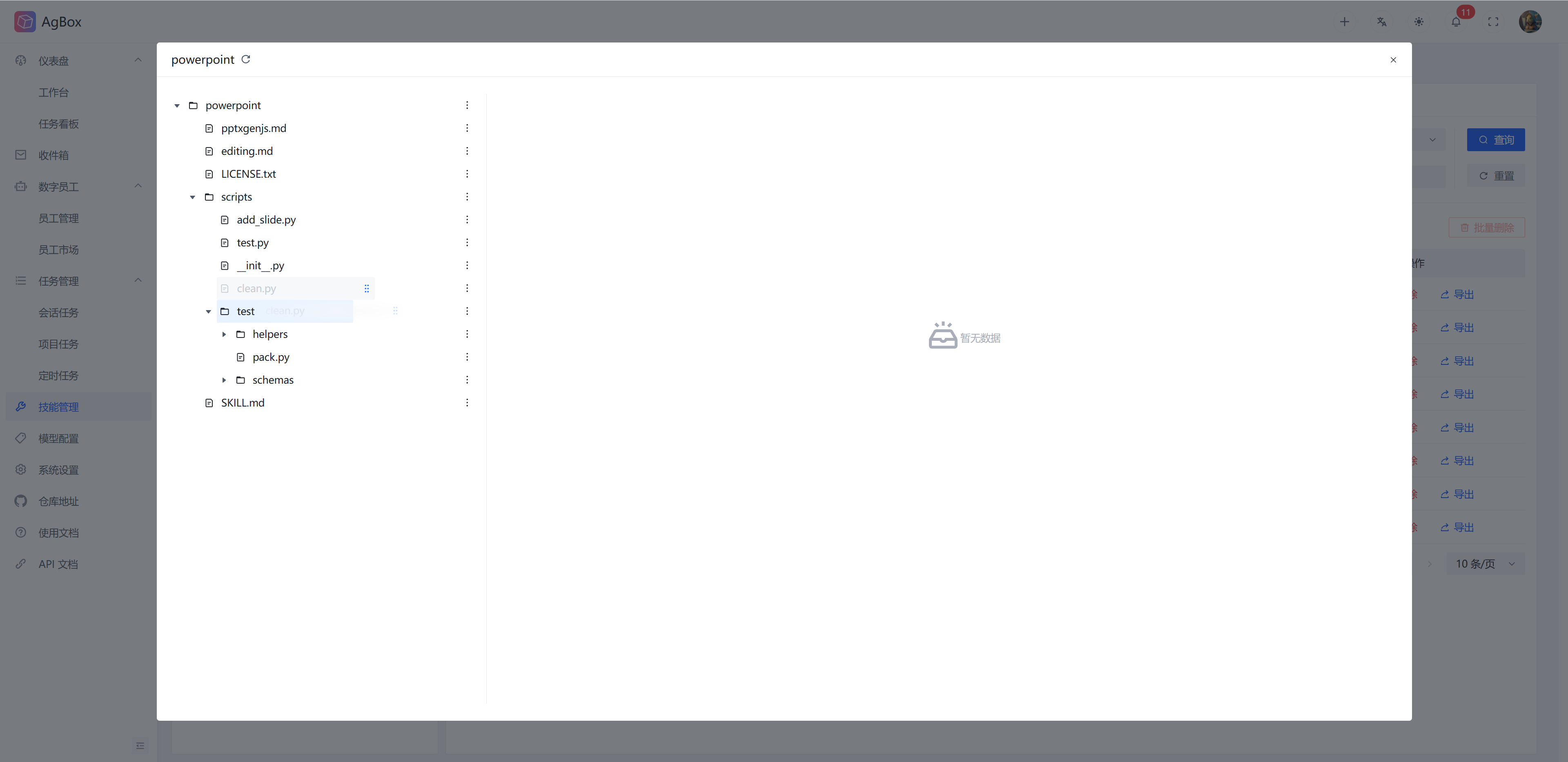
File Operations
Create File
Rename
Upload File
Delete Skill
Supports deleting/batch deleting skills (skill library and each digital employee are independent).
Export Skill
Supports exporting skills to local in zip archive format.