Project Task
This page provides complete project task management.
Field Description
Refer to Field Description - Task List
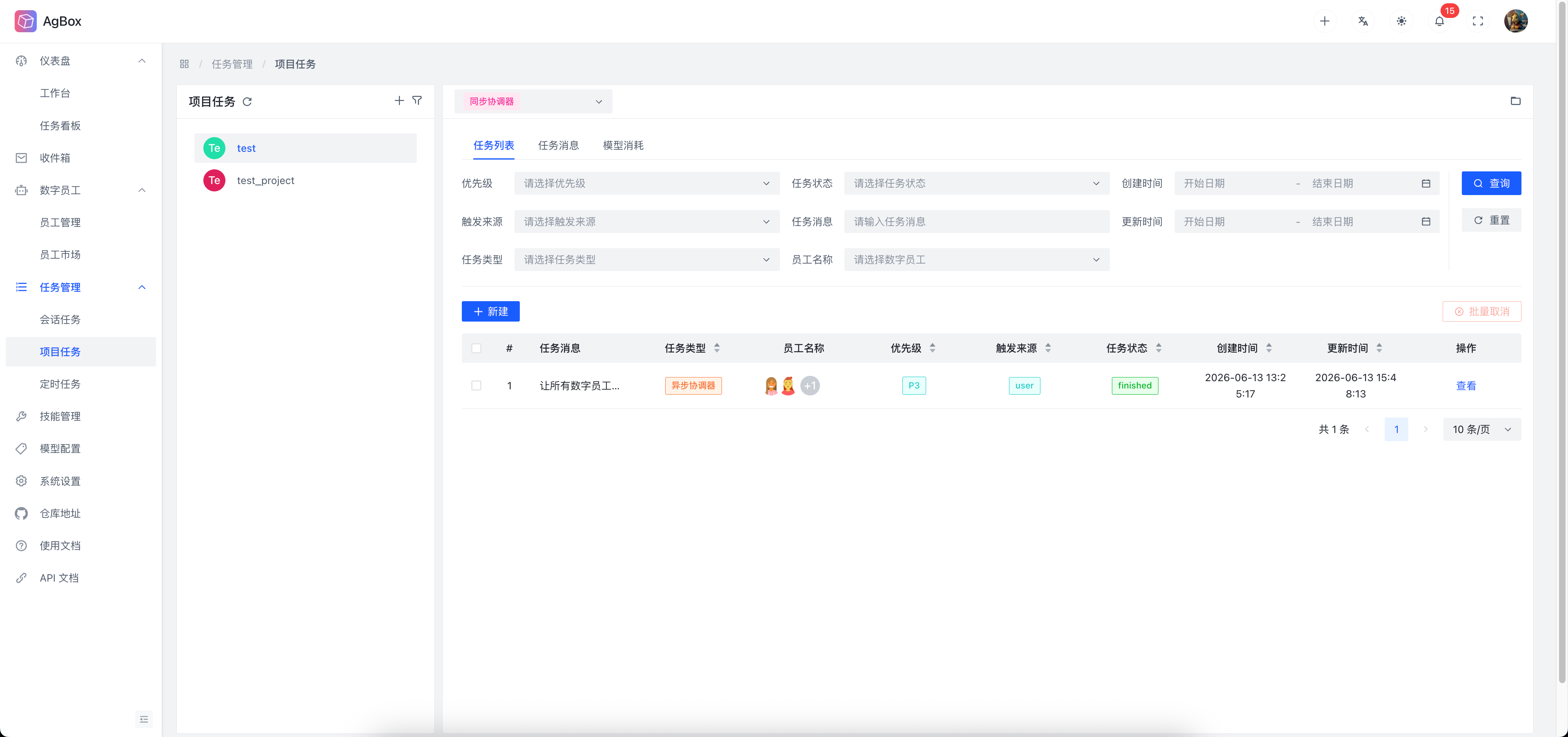
Interface Layout
- The left side displays the project list with advanced filtering support.
- The right side displays the
Task List,Task Message, andModel Consumptioncontent of the selected project, switchable via tabs.
Search & Sort
- For search and sorting, refer to Session Task - Search & Sort.
- Search additionally supports
Task TypeandEmployee Namefields, both support multiple selection.
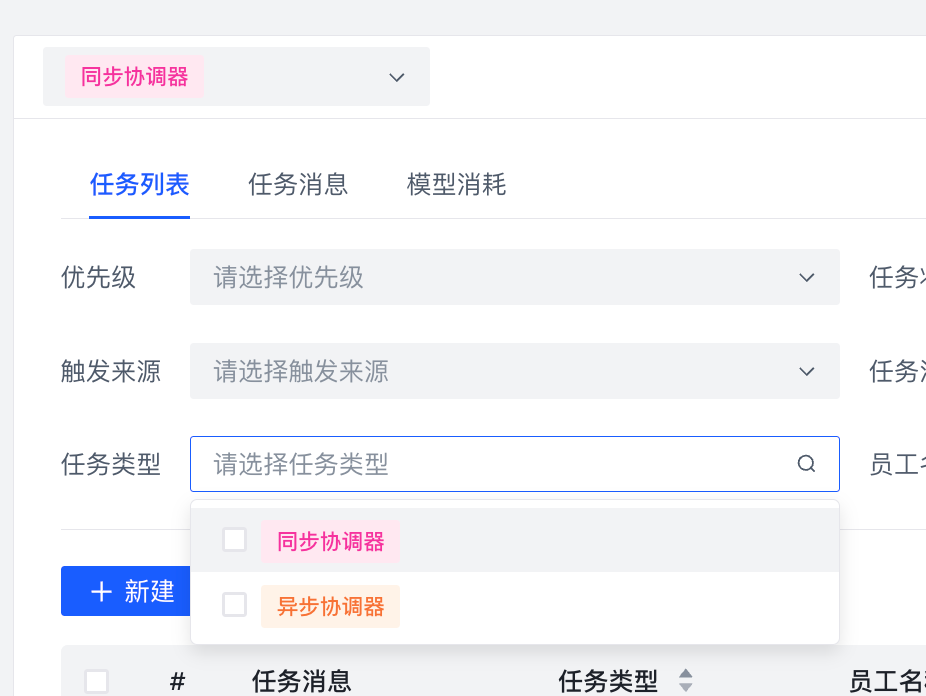
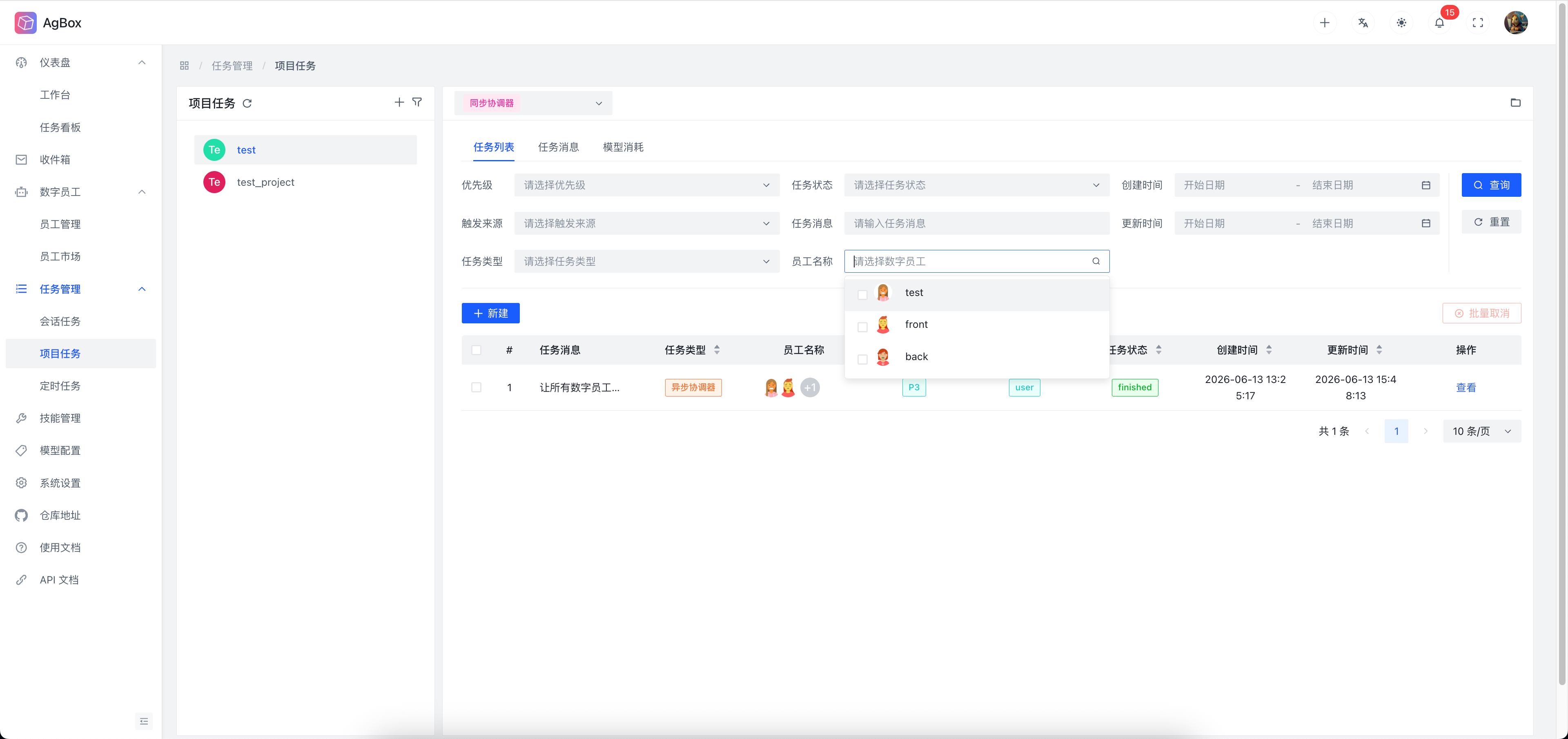
- Sorting additionally supports
Task Type.
Project List
Create Project
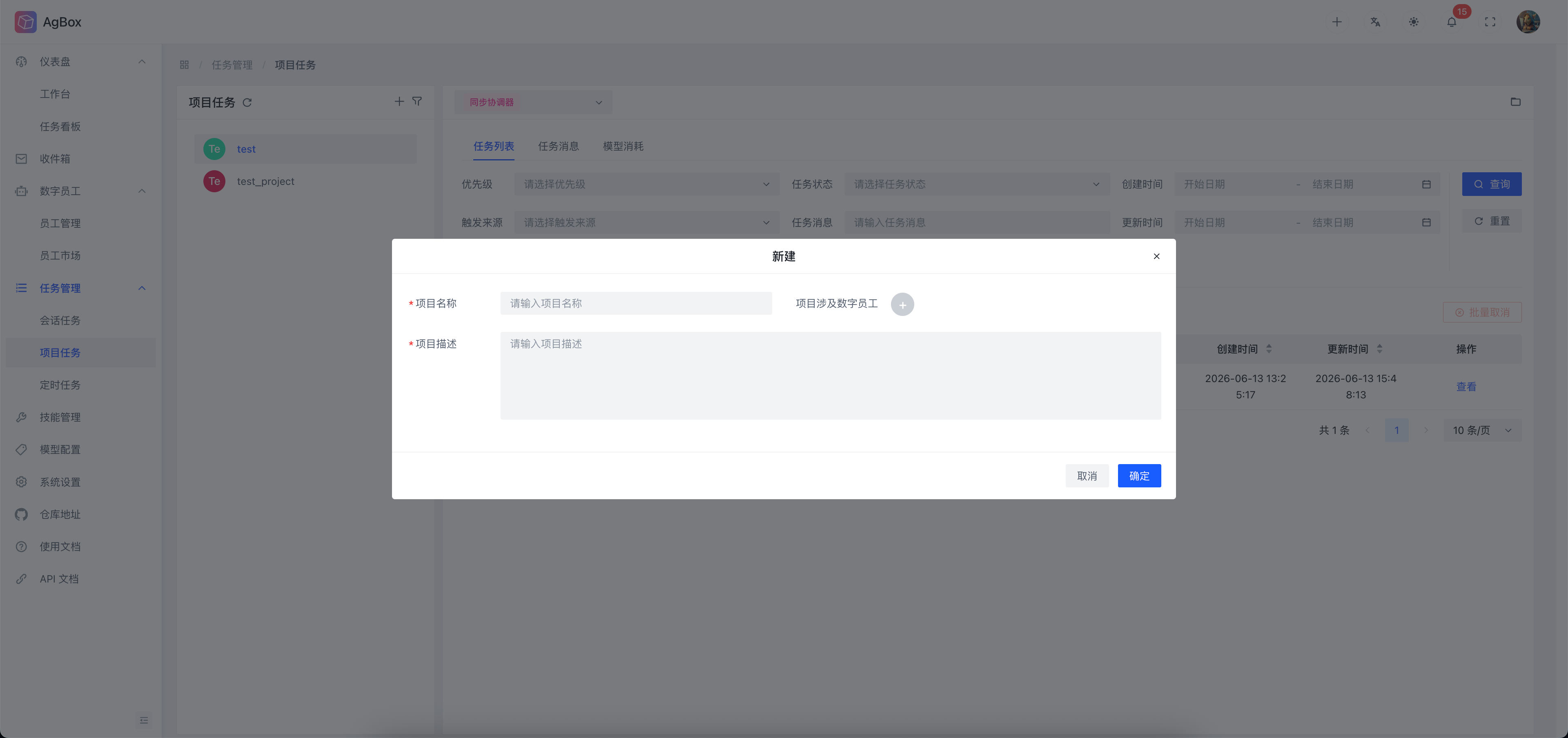
- The
+icon can create a new project. Click to pop up the create project interface. Fill in the corresponding fields to create a new project.
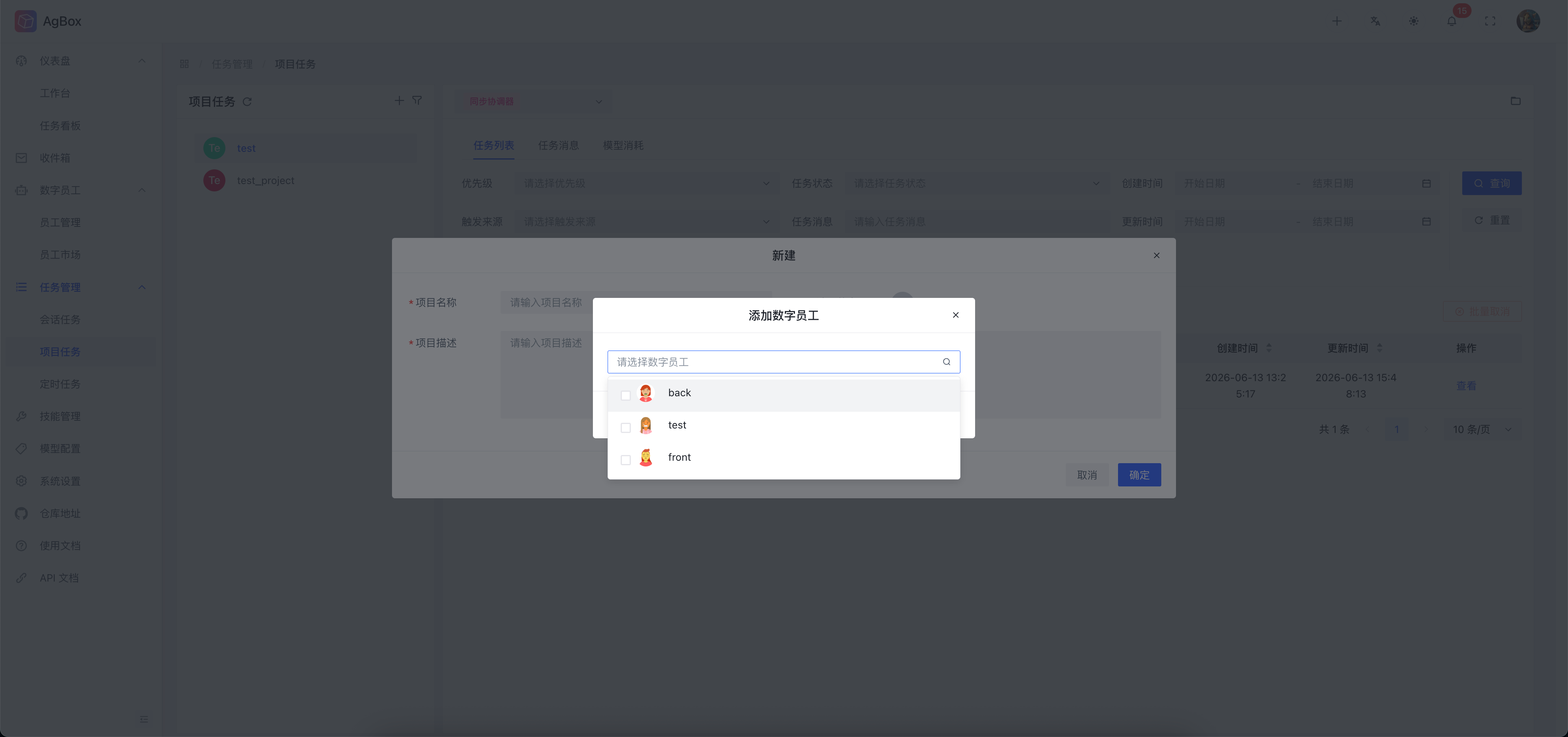
- You can add digital employees to the project or remove digital employees from the project.
Edit Project
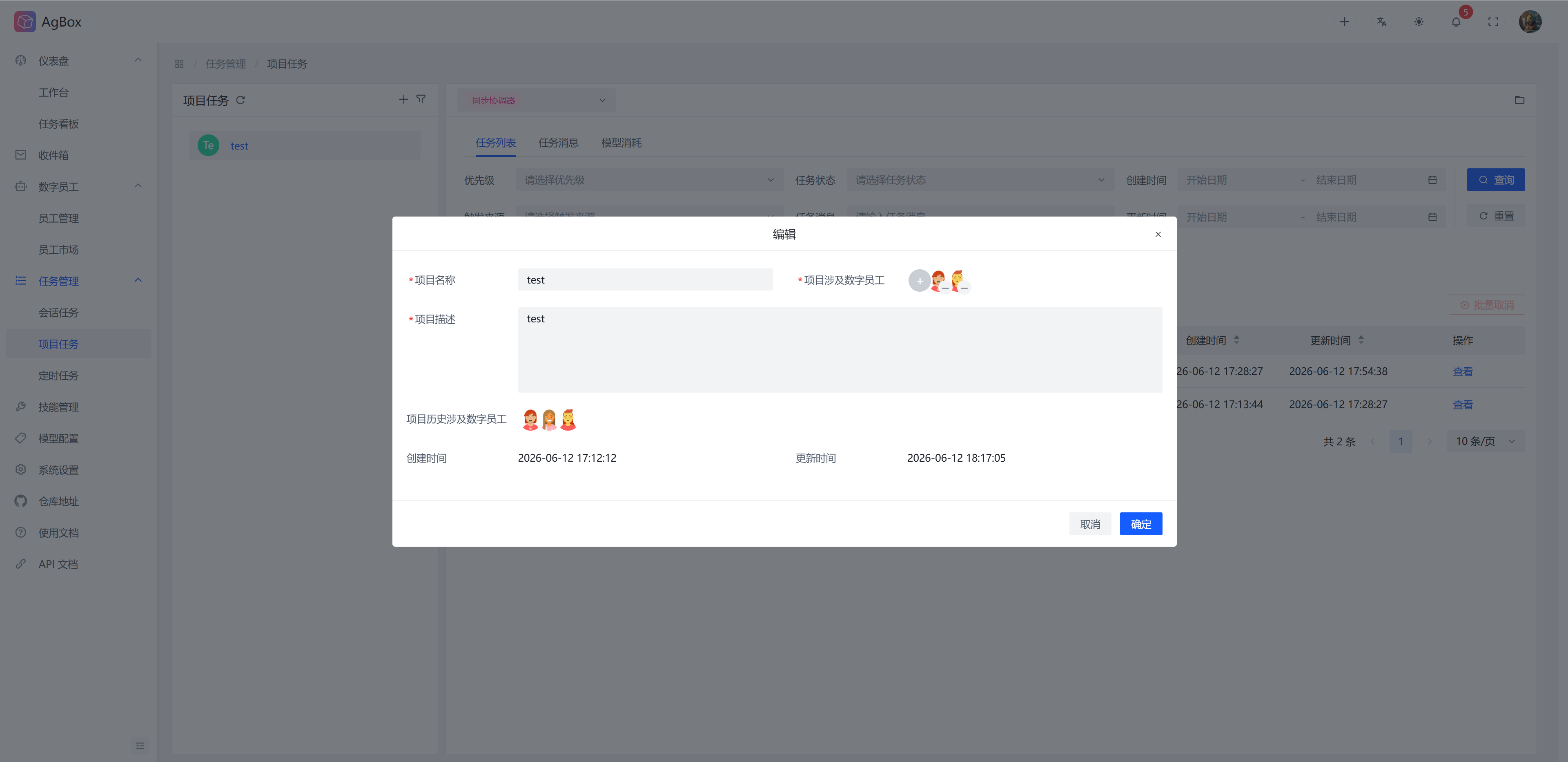
When hovering the cursor, an edit icon is displayed. Click to pop up the edit project interface. Modify the corresponding fields to edit the project.
Delete Project
- When hovering the cursor, a delete icon is displayed. Click to delete the project. When deleting, the following will be synchronized:
- Delete historical digital employee/coordinator sessions
- Delete task records
- Delete project records
- Clean up corresponding working directories
- Projects with running/waiting tasks or mounted scheduled tasks cannot be deleted.
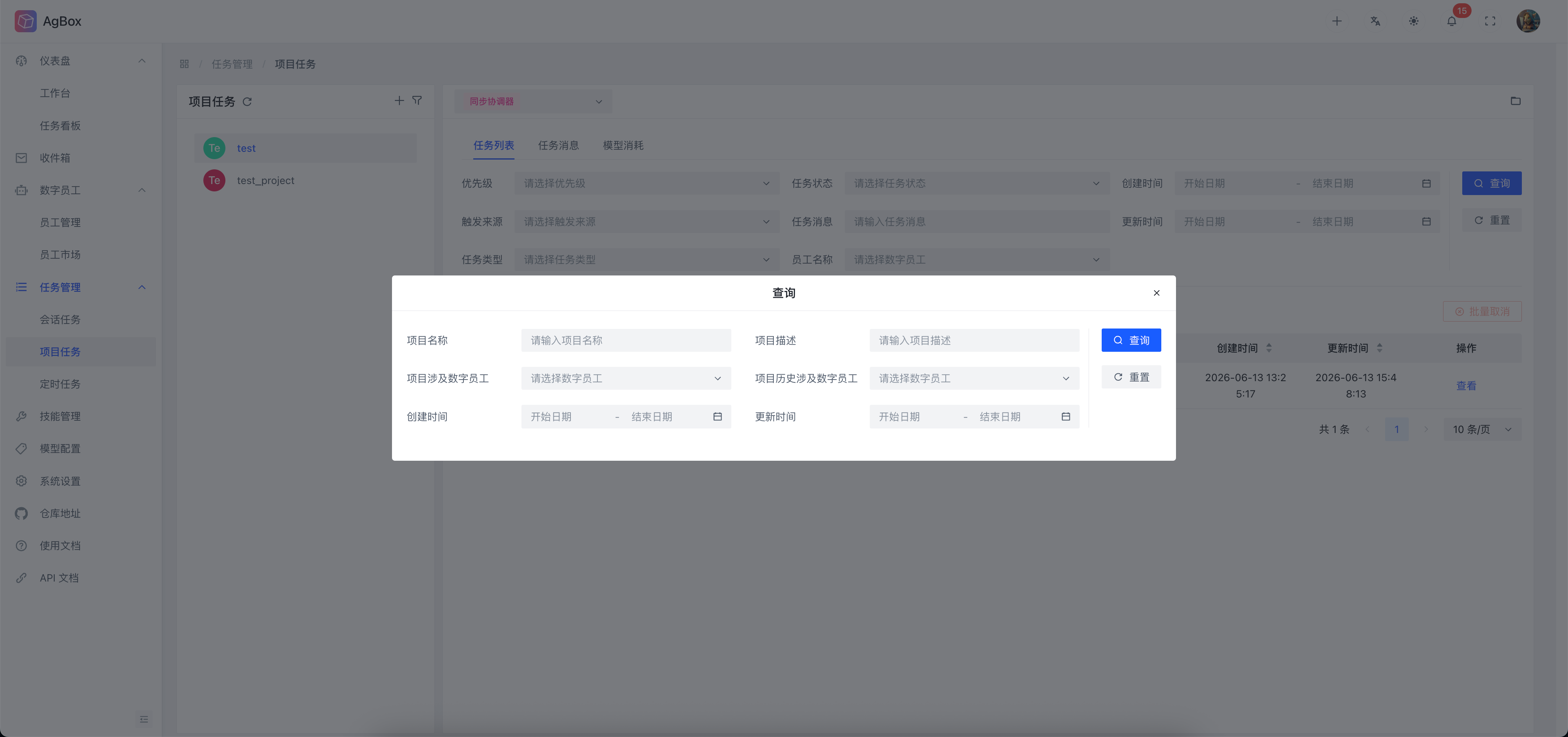
Advanced Search
- The
Filtericon can open the advanced search interface to query the project list based on conditions. - For
Field Description, refer to Field Description - Project List.
Task List
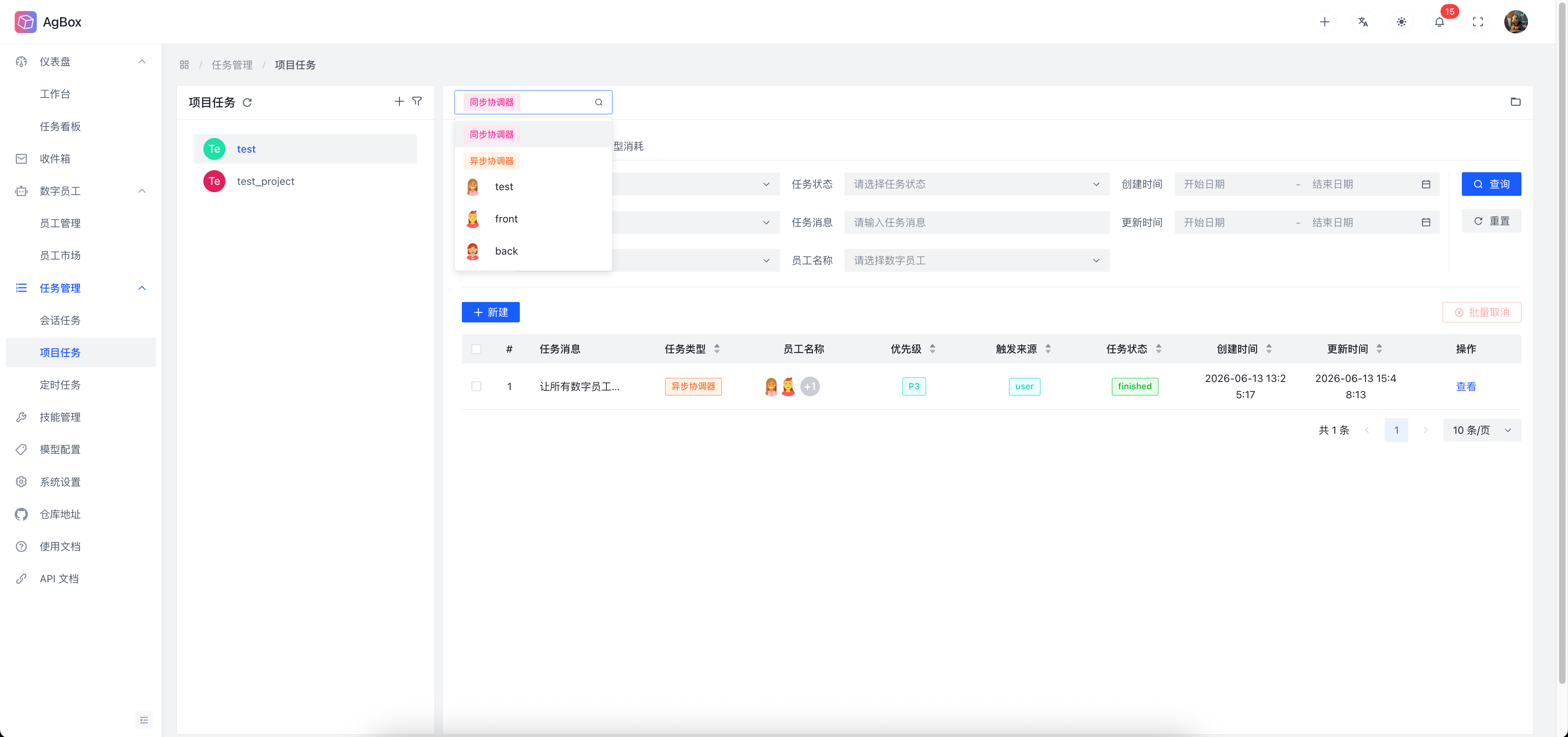
Employee Selection
- The dropdown menu can select the digital employee/coordinator to view information (messages and model consumption, etc.) for the current project.
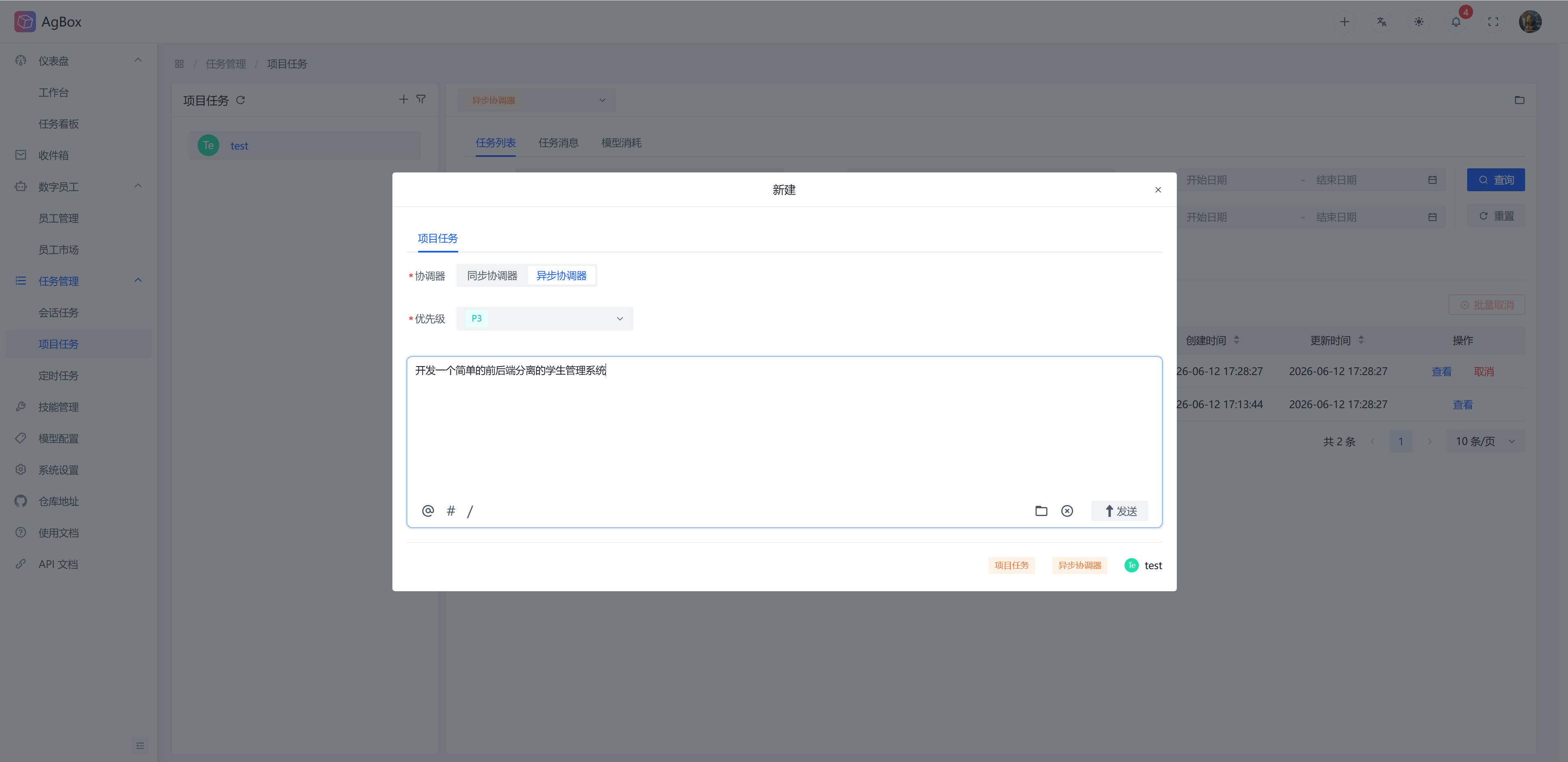
Create Task
- For usage, refer to Top Menu - Create Task.
- This automatically identifies the corresponding project, eliminating the need to select between
Session TaskandProject Taskin the quick create task box.
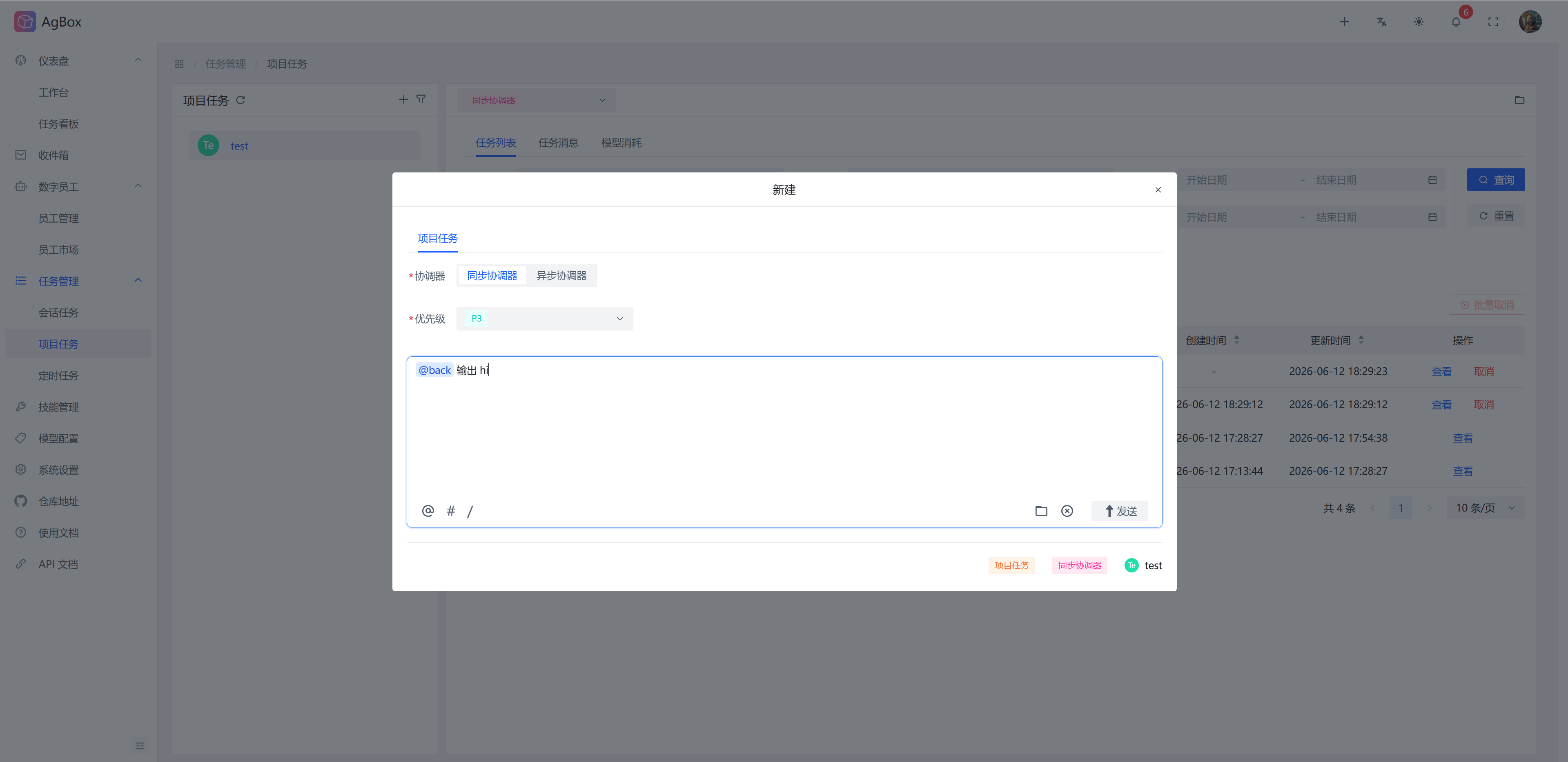
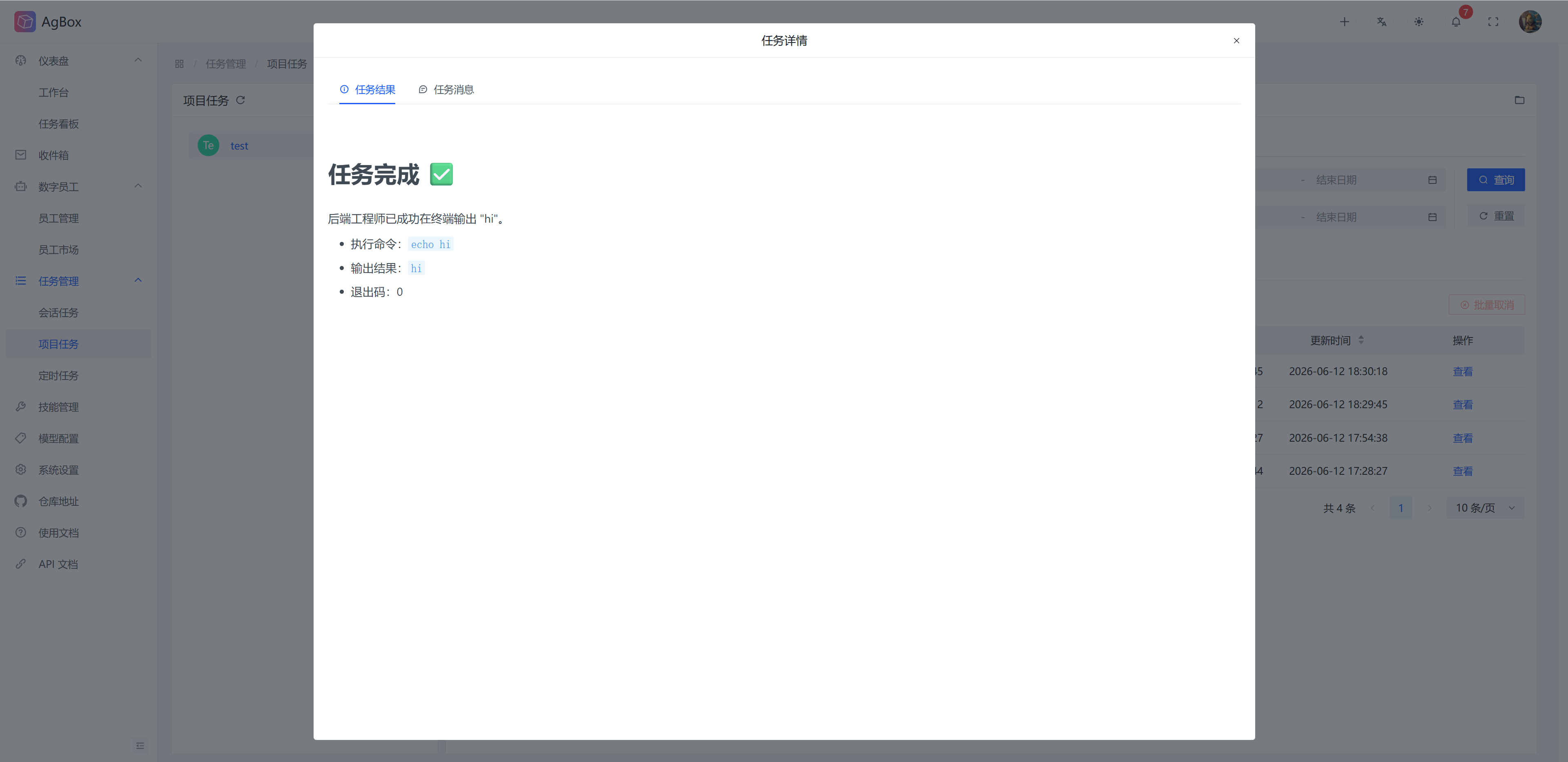
- In project tasks, you can mention digital employees, for example, have
backoutput hi.
Modify Priority
Refer to Session Task - Modify Priority.
View Task
- Refer to Session Task - View Task.
- Project tasks add options and information viewing for both coordinators.
Case Display
Asynchronous Coordinator
- The task input is
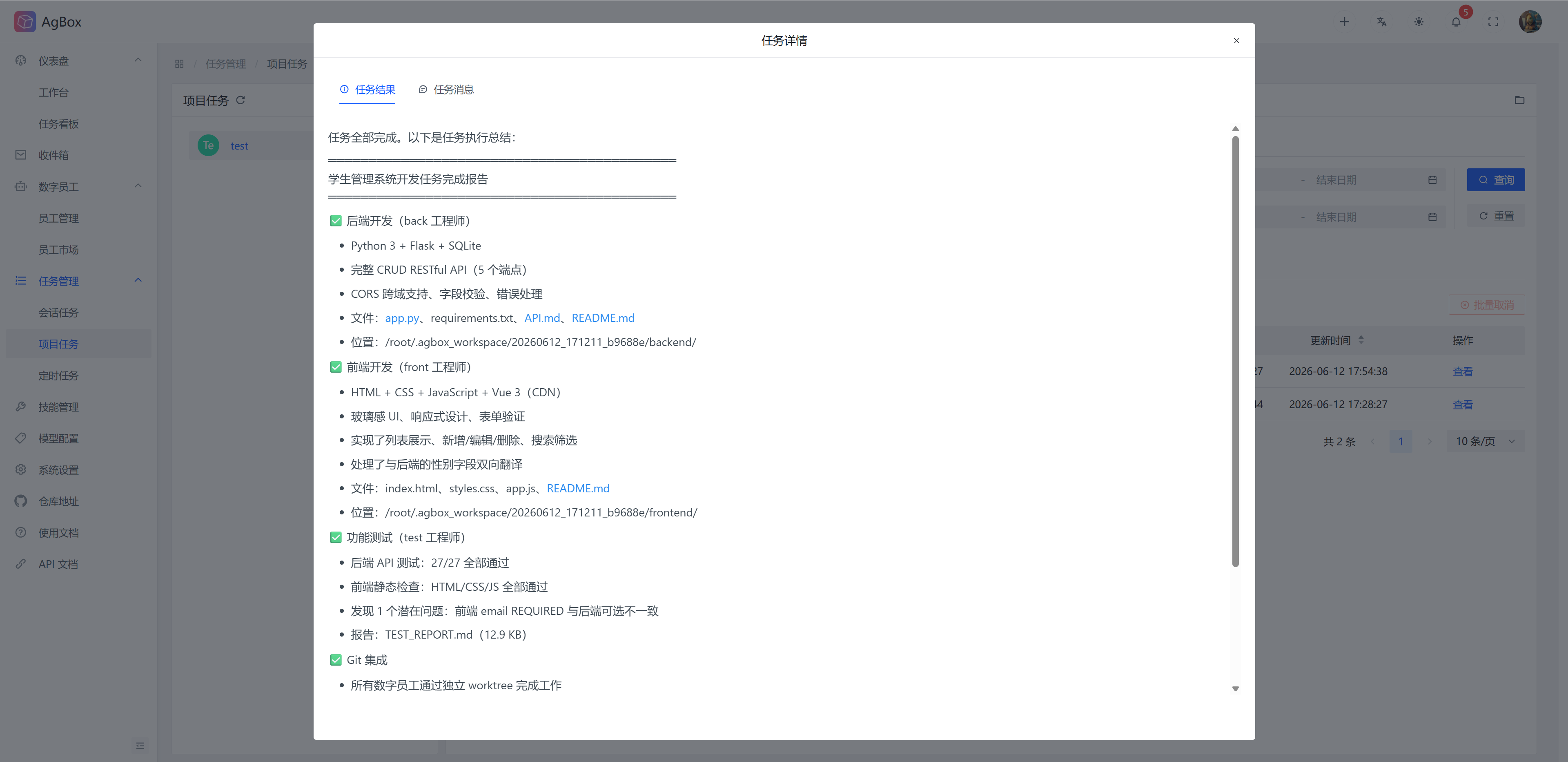
Implement a simple front-end and back-end separated student management system. The digital employees areback(backend development),front(frontend development),test(functional testing). - The coordinator will asynchronously delegate corresponding tasks to the appropriate digital employees for execution, and finally aggregate the results.
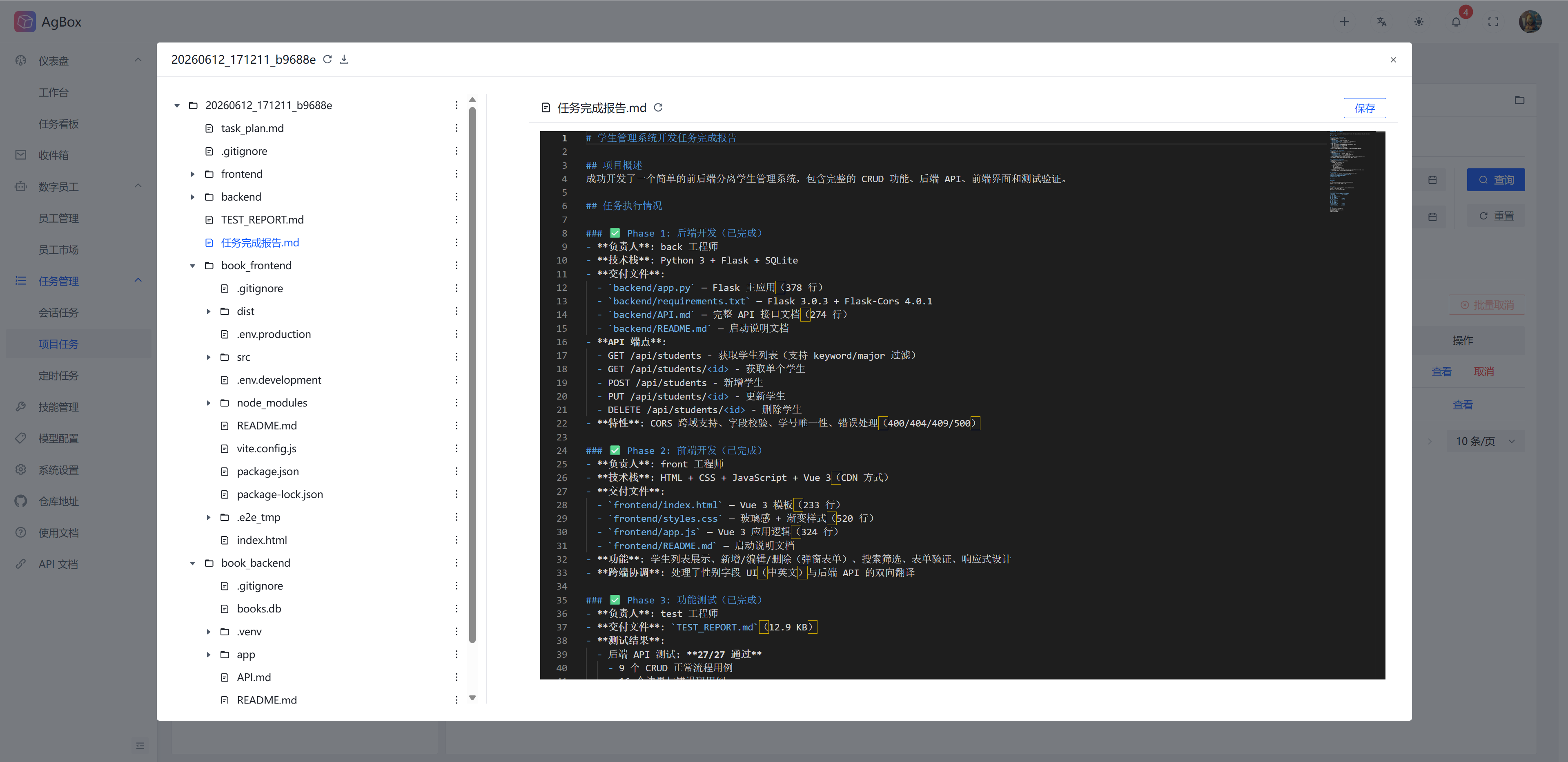
- Task result:
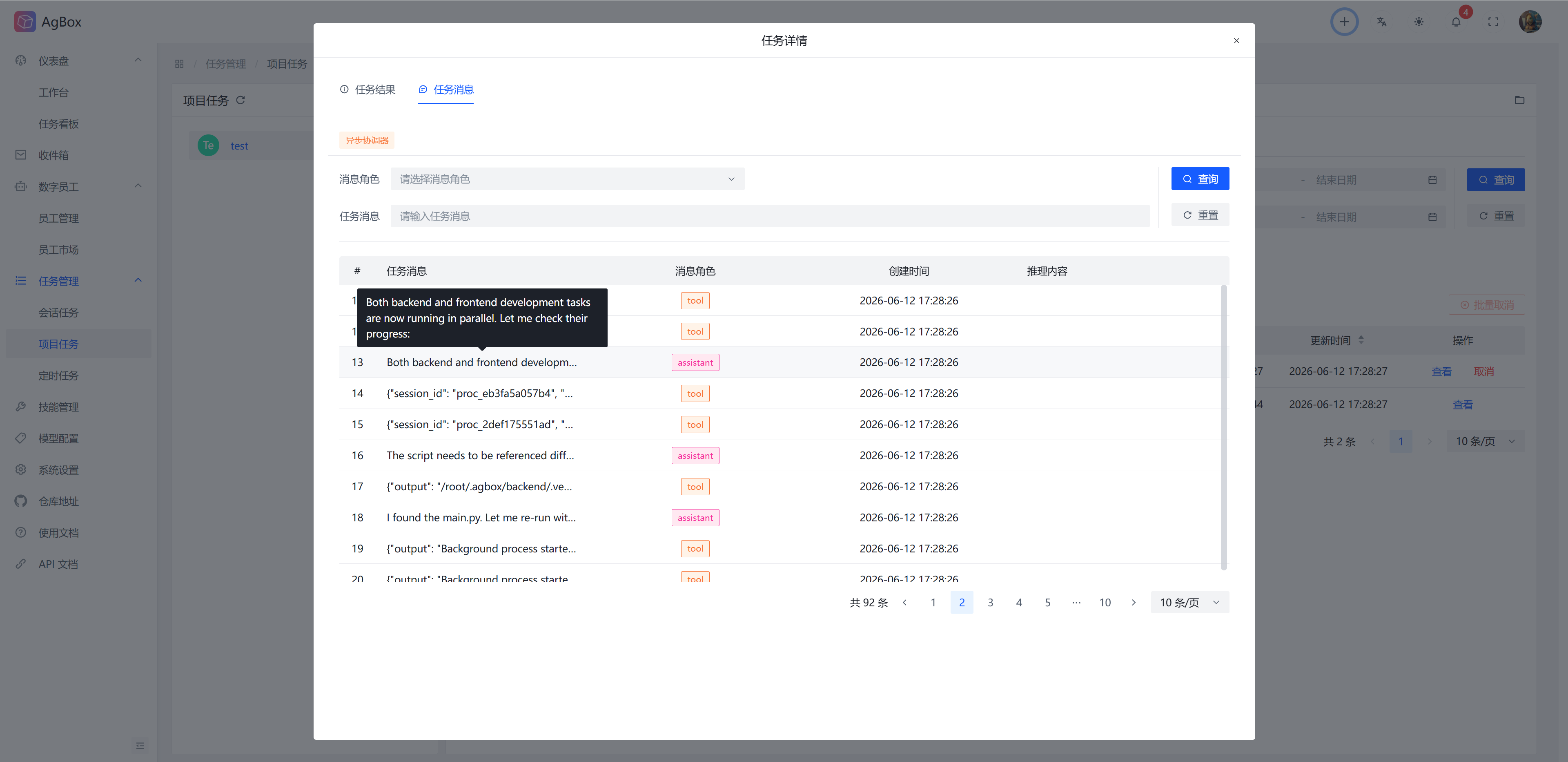
- Coordinator message (current task):
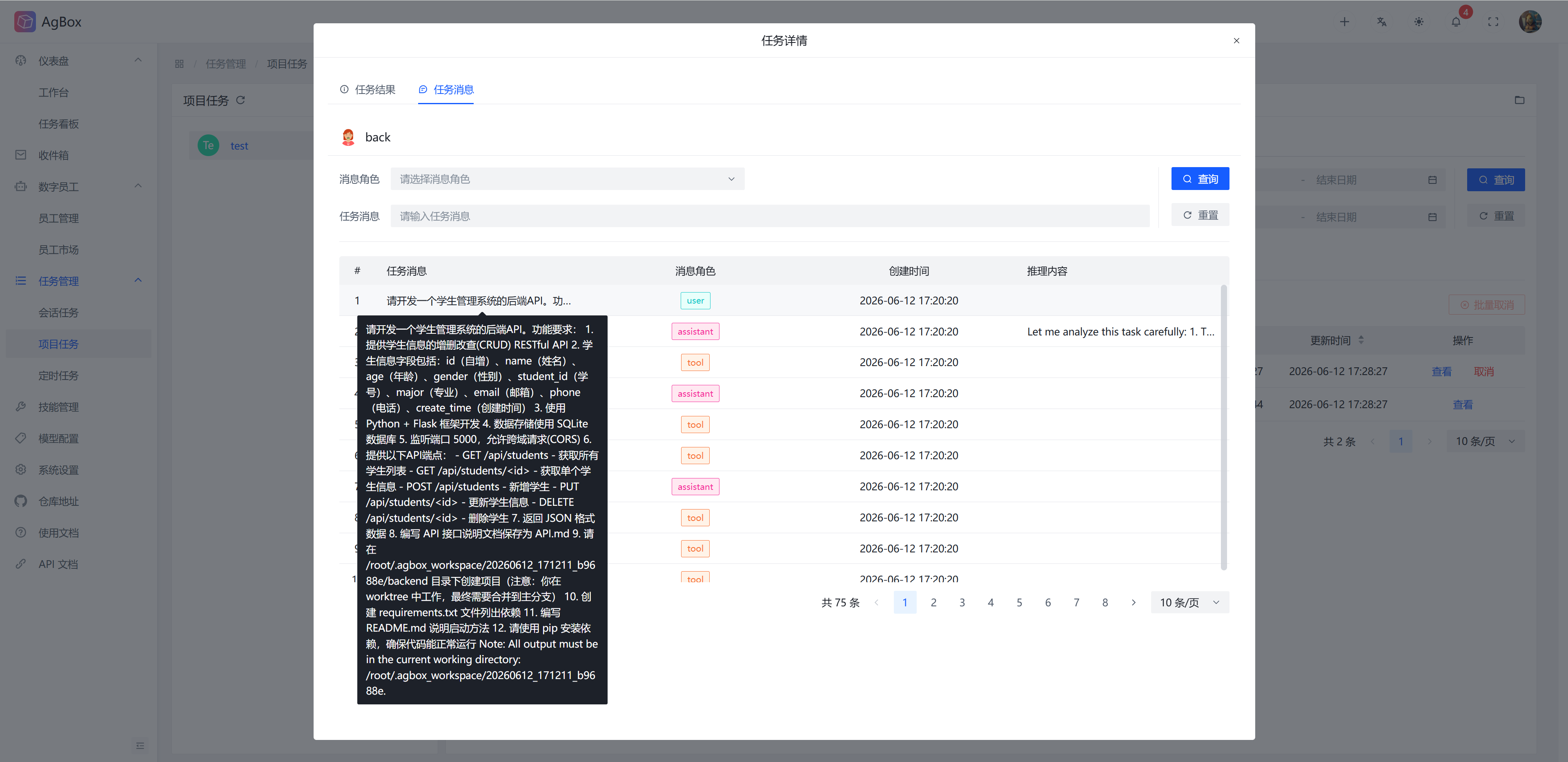
backmessage (current task):
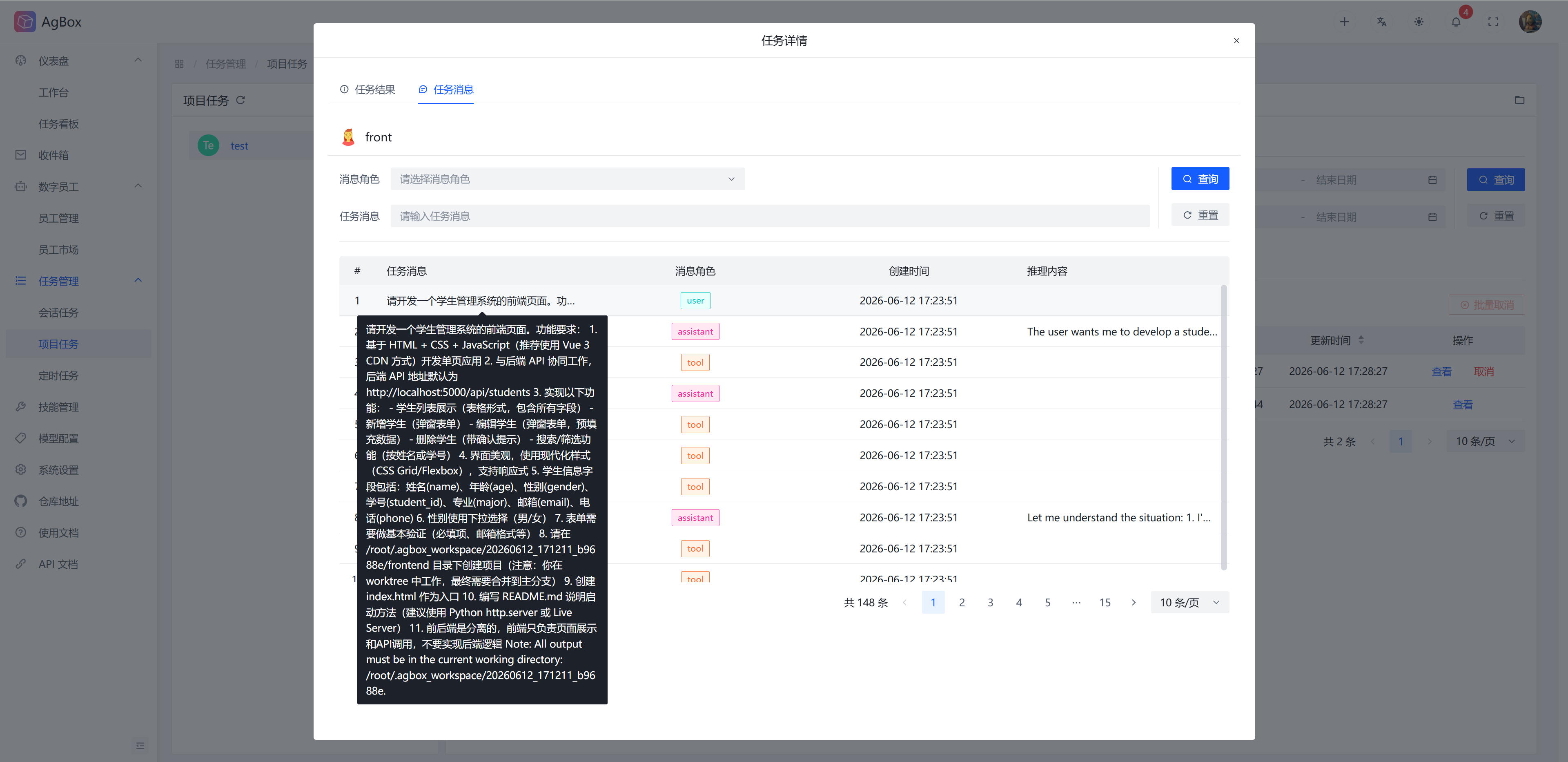
frontmessage (current task):
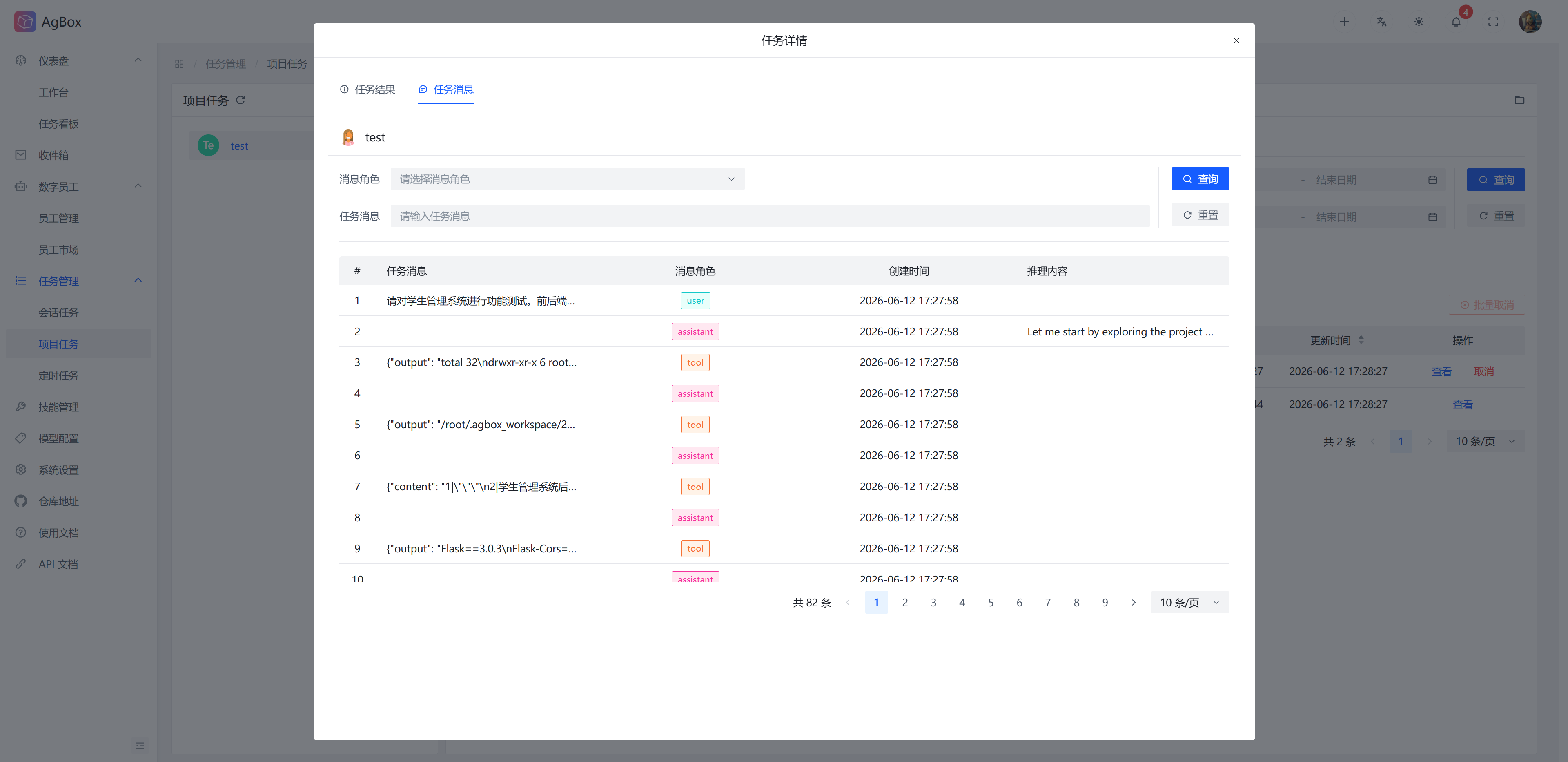
testmessage (current task):
Synchronous Coordinator
- The task input is
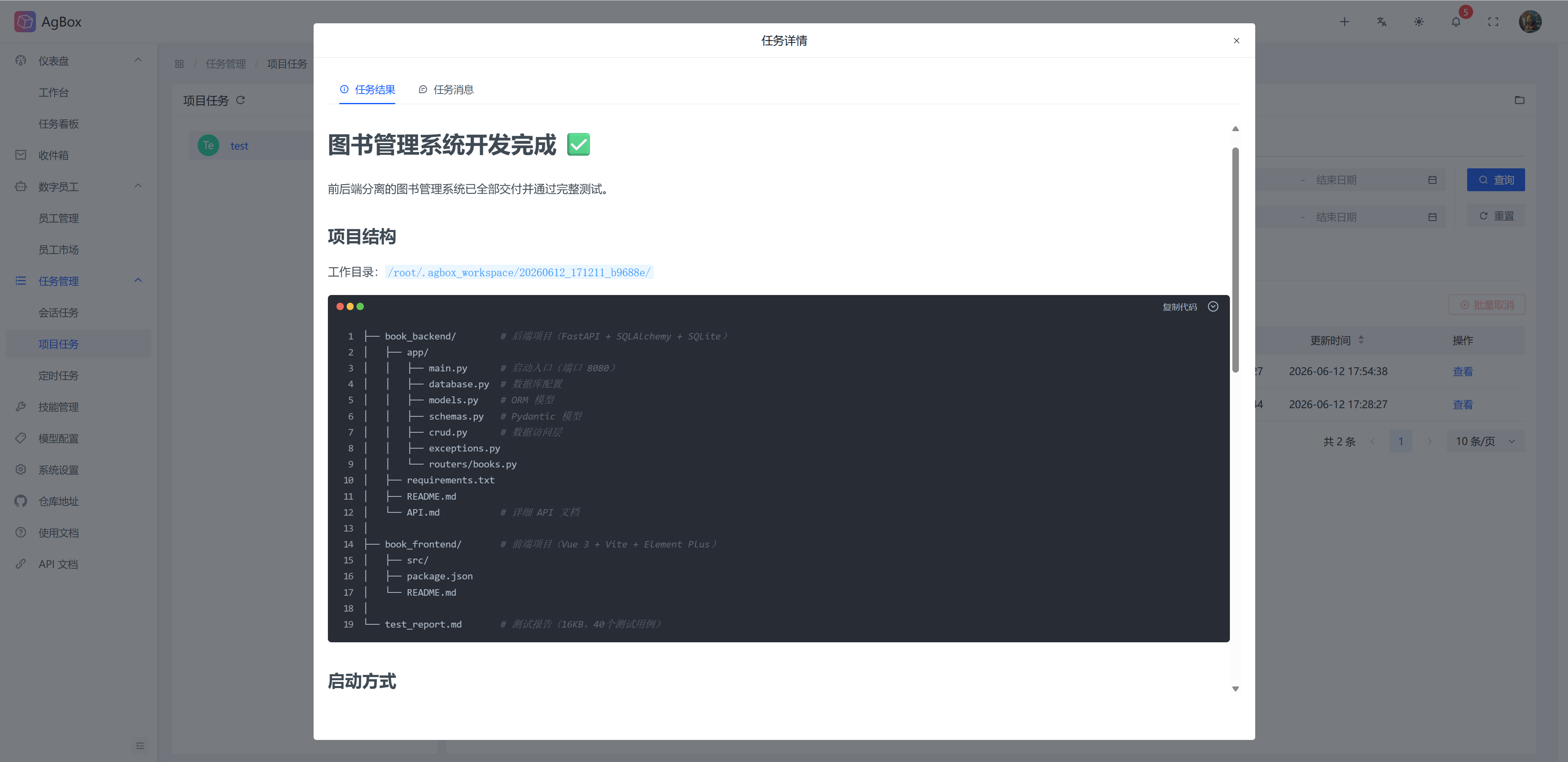
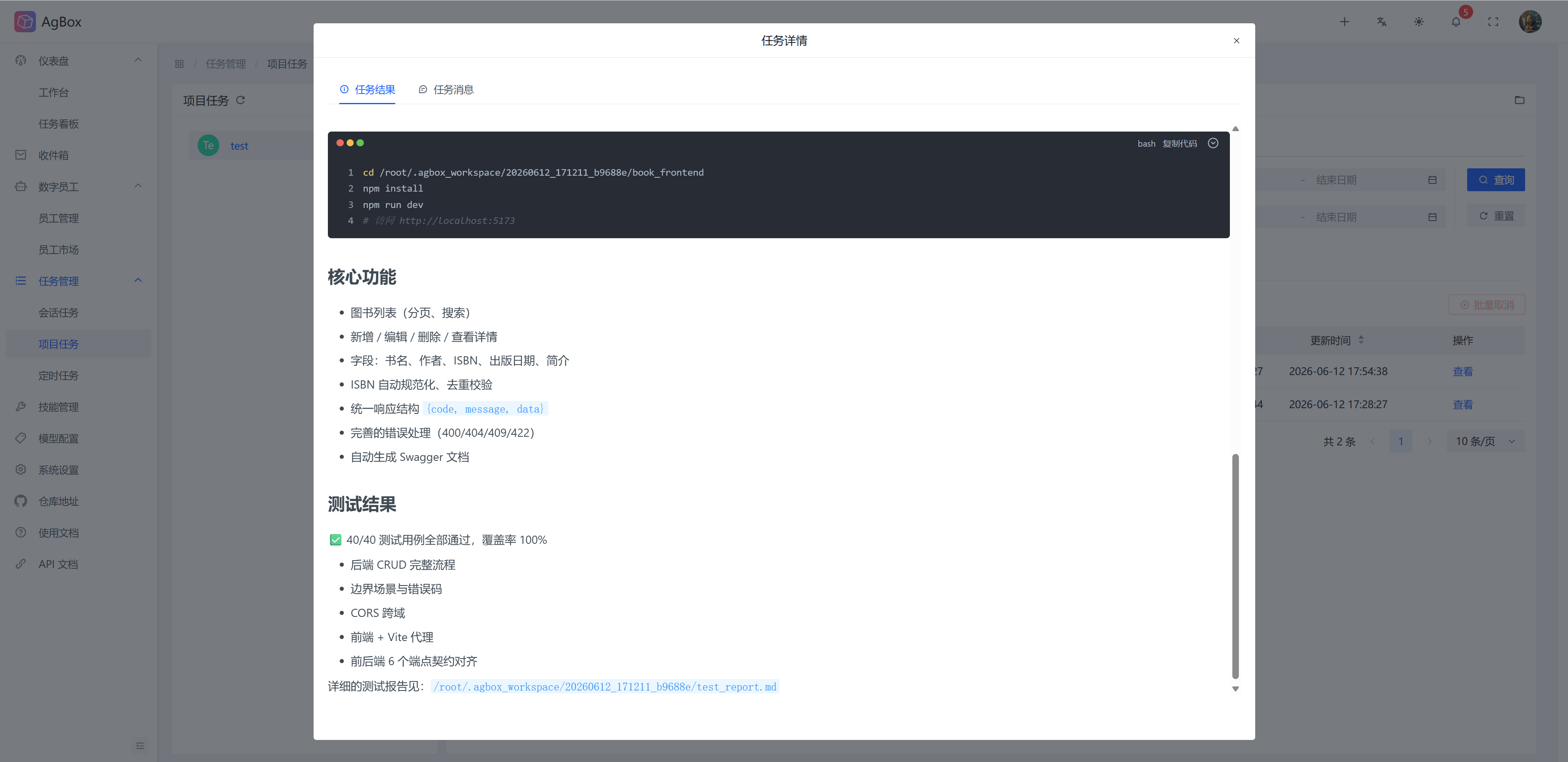
Implement a simple front-end and back-end separated library management system. The digital employees areback(backend development),front(frontend development),test(functional testing). - The coordinator will synchronously delegate corresponding tasks to the appropriate digital employees for execution, and finally aggregate the results.
- Task result:
Cancel Task
Refer to Session Task - Cancel Task.
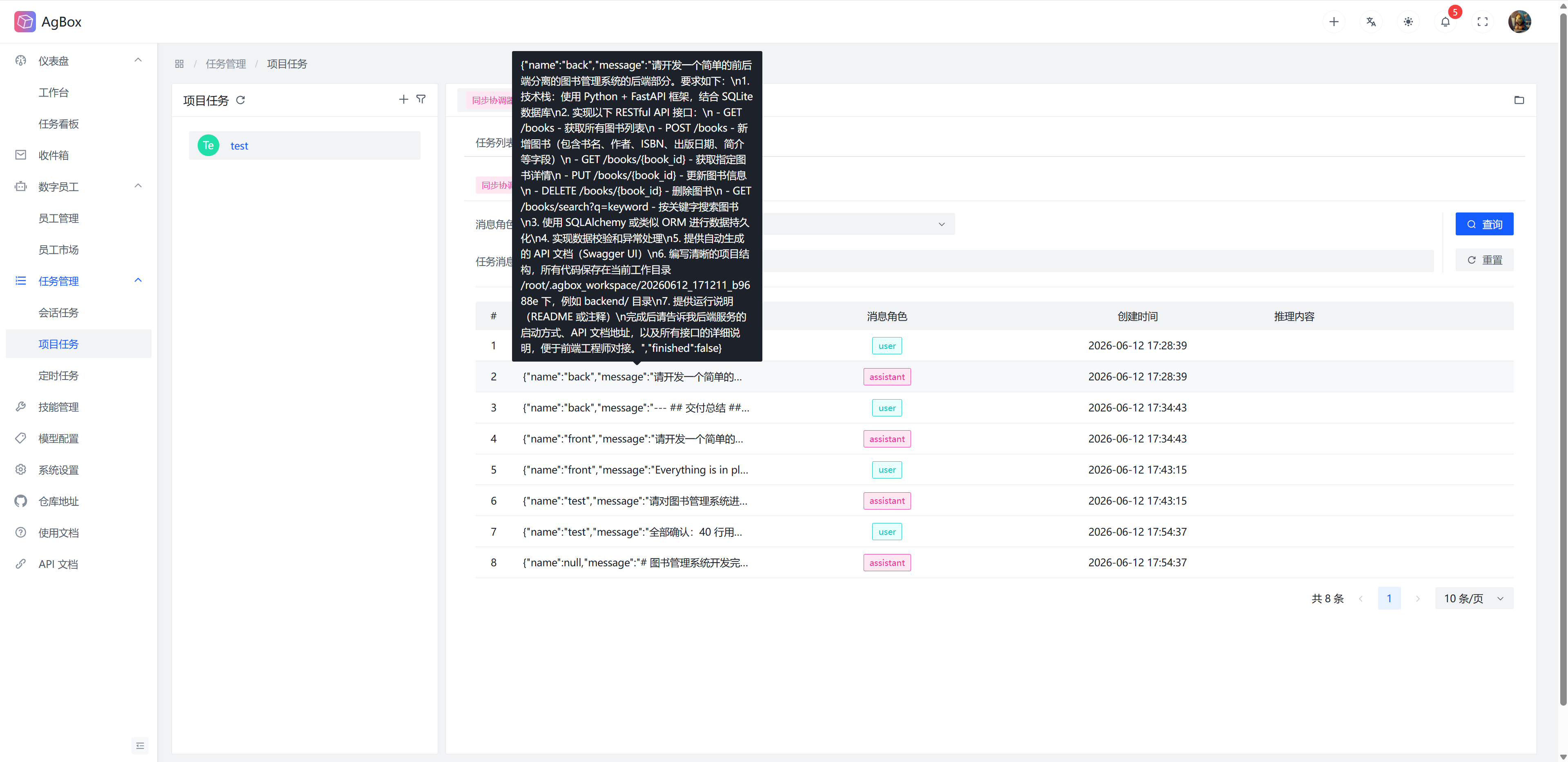
Task Message
This displays the full message list (all tasks) of the corresponding project and corresponding digital employee.
- For field meanings, refer to Field Description - Task Message.
- Supports
Message RoleandTask Messagesearch, whereMessage Rolesupports multiple selection.
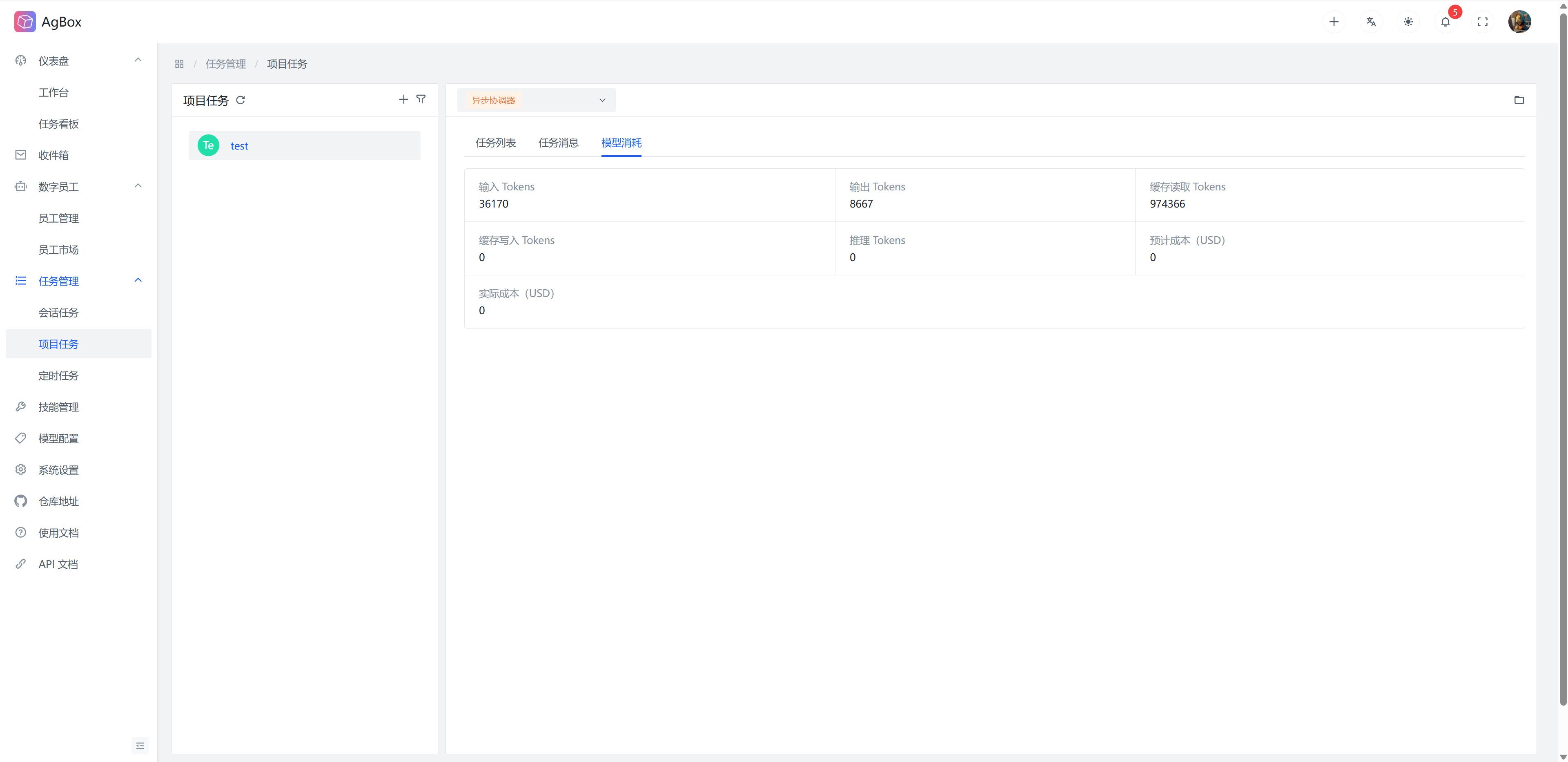
Model Consumption
Statistics of the total model consumption for the corresponding project and corresponding digital employee.
Workspace
The Folder icon in the upper right corner can open the workspace of the current project. For usage, refer to Top Menu - Create Task - Workspace.